Sign in with Microsoft
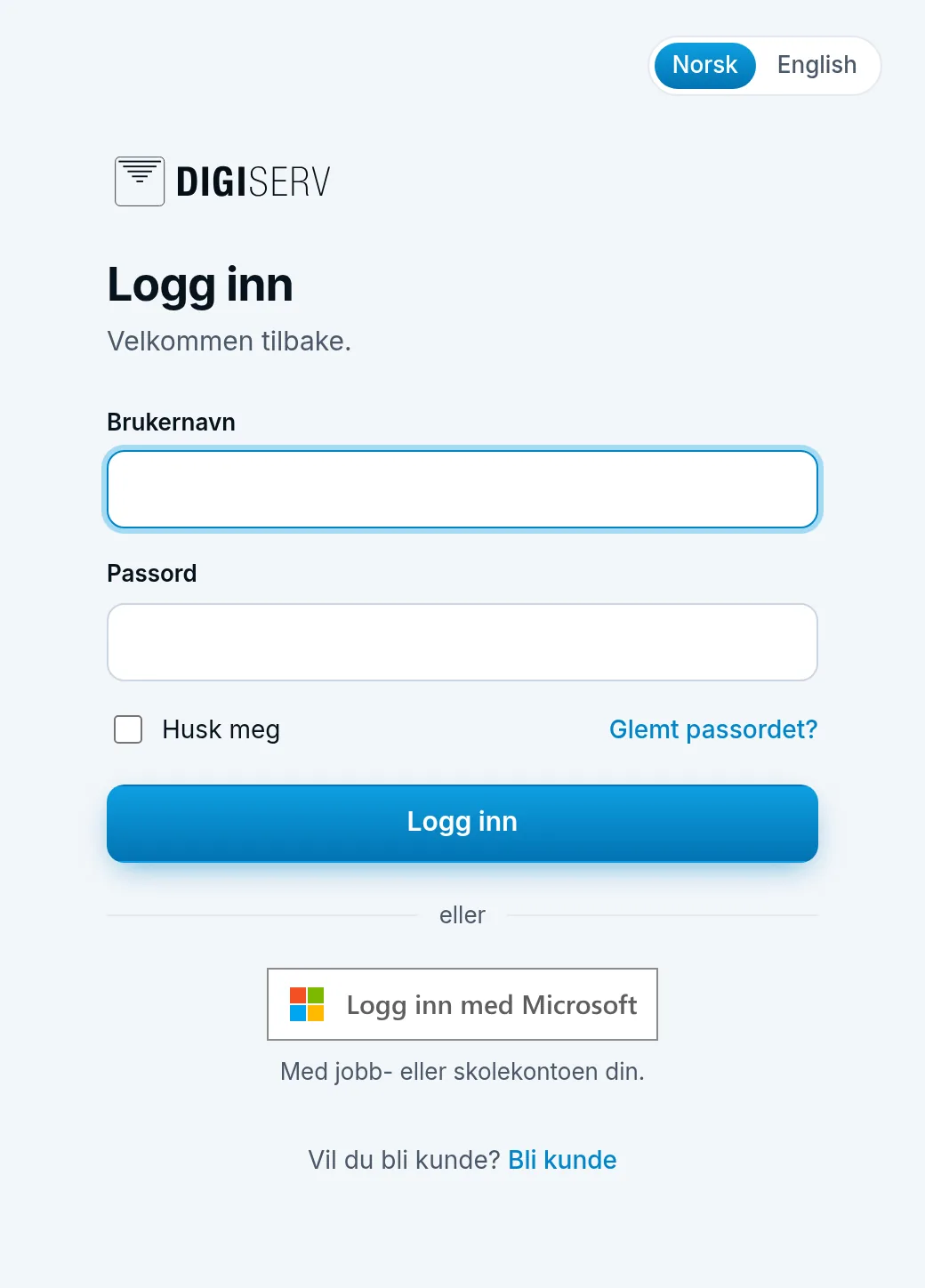
If your company has sign-in with Microsoft, you can sign in to the control panel with your Microsoft 365 work account. Digiserv sets up the sign-in for each company. The button is on the login page for everyone, but only works if your company has it. Otherwise you log in with a password, see Log in.
You still need a user in the control panel. Microsoft doesn't create a user for you. If you don't have one, a colleague needs to invite you.
How to sign in
- Click Sign in with Microsoft below the login form.
- Choose your work account at Microsoft, and sign in there as usual.
- You return to the control panel and are signed in.
If you have two-factor authentication in the control panel but didn't use two-factor at Microsoft, you'll come to Two-factor authentication afterwards. Enter the one-time code from your authenticator app and click Verify. If you confirmed with two-factor at Microsoft, you skip this step.
The first time: link the account to your user
The first time, the Microsoft account has to be linked to your user in the control panel. It must have the same email address as your user. After signing in at Microsoft, you come to Link to Microsoft, where your email address is shown under User.
- Enter your control panel password under Password.
- If you have two-factor authentication, also enter the one-time code from your authenticator app under One-time code. Recovery codes don't work here.
- Click Link and sign in.
The account is now linked, and you're signed in. You get an email saying that a Microsoft account has been linked to your user. Next time, Sign in with Microsoft is all you need.
At some companies the account is linked automatically, and then you get straight in the first time too. You can also link it from My profile while you're logged in, see Link or unlink your Microsoft account.
When your company requires Microsoft
Digiserv can require sign-in with Microsoft for your company. Then the password no longer works for users with an email address on the company's domains:
- If you log in with a password, you get Username or password is incorrect. Please try again!, even when the password is correct.
- Forgot password? doesn't send a link.
- The one-time code from your authenticator app works as before when the control panel asks for it.
If your account isn't linked yet, you link it the first time with your password as described above. That also works when your company requires Microsoft.
When the requirement is turned on, you're logged out. Apps you've given access to your account need to be connected again. Users with an email address on a different domain keep their password, and Digiserv can make exceptions for individual users.
How long you stay signed in
A sign-in with Microsoft lasts at most eight hours, and Remember me doesn't apply. After eight hours, the control panel sends you back through Microsoft. If you're still signed in there, you come straight back to where you were. Otherwise you sign in again. Text you haven't saved may be lost.
If you log out of the control panel, you're still signed in at Microsoft.
When it doesn't work
If the sign-in fails, you return to the login page with We could not sign you in with Microsoft. Your company must have turned on sign-in with Microsoft, and your user must be connected. Try again, or sign in with a password. For security reasons, the page doesn't say what went wrong. The most common causes are:
- Sign-in with Microsoft isn't set up for your company, or for your email domain.
- You chose the wrong account at Microsoft. Use the work account with the same email address as your user in the control panel. Personal Microsoft accounts and guest accounts don't work.
- You don't have a user in the control panel. Ask a colleague to invite you.
- You don't have a password in the control panel, so the account can't be linked. Create one with Forgot password? on the login page, and try again. If your company requires Microsoft, you won't get a link, and then we'll need to help you.
- Your company requires two-factor authentication, and the sign-in at Microsoft didn't use it. Turn on two-factor at Microsoft, see Set up Microsoft Authenticator. You can also turn it on in the control panel, see Turn on two-factor authentication.
- More than ten minutes passed at Microsoft. Try again.
If you're stuck, contact the administrator at your company, or us at support@digiserv.no or 38 27 80 00.
Accept an invitation with Microsoft
If your company has sign-in with Microsoft, you can accept an invitation with your Microsoft account instead of choosing a password.
- Click the link in the invitation email.
- Click Sign in with Microsoft on the You are invited page.
- Sign in at Microsoft with the account that has the same email address the invitation was sent to.
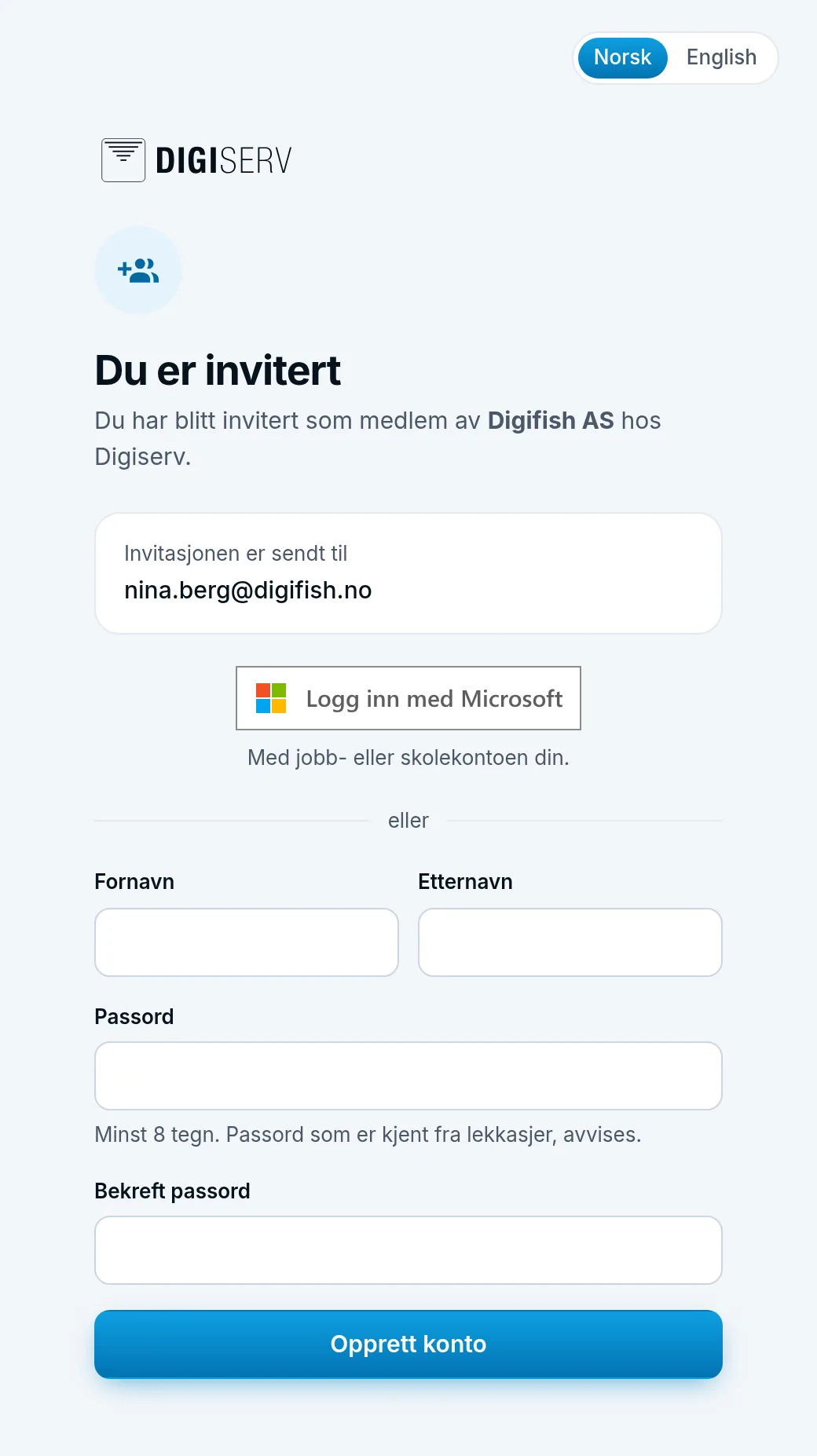
Your user is then ready and linked, and you're signed in. The name is taken from the invitation, or from Microsoft when the invitation has no name.
If your company requires Microsoft, it says Your company uses sign-in with Microsoft, so you do not need a password here. Sign in with the Microsoft account at the address above, and your account is ready. In that case you can't choose a password.
If you already have a user with a password or two-factor authentication, you won't see the button. Click Log in to accept and log in as usual first.
If it doesn't work, it says We could not use the Microsoft account for this invitation. The account must have the same email address as the invitation, and the company must have turned on sign-in with Microsoft. If it also says You can choose a password instead., you can fill in the form and choose a password.