Link or unlink your Microsoft account
If your company has sign-in with Microsoft, the Sign in with Microsoft card appears on the Security tab. There you link your Microsoft work account to your user, and see whether it's Linked or Not linked. If you don't see the card, sign-in with Microsoft hasn't been set up for your company or for your email domain.
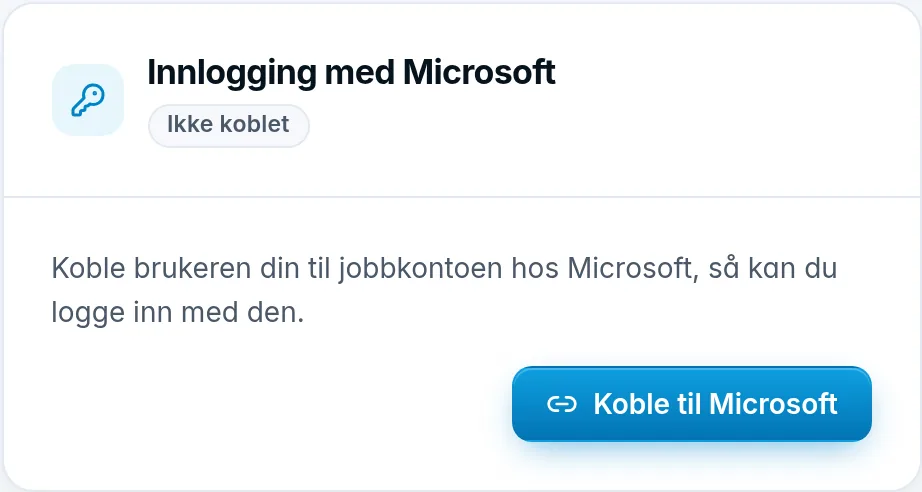
You can only have one Microsoft account linked to your user. You can also link it the first time you sign in with Microsoft, see Sign in with Microsoft.
Link your account
- Click Link to Microsoft.
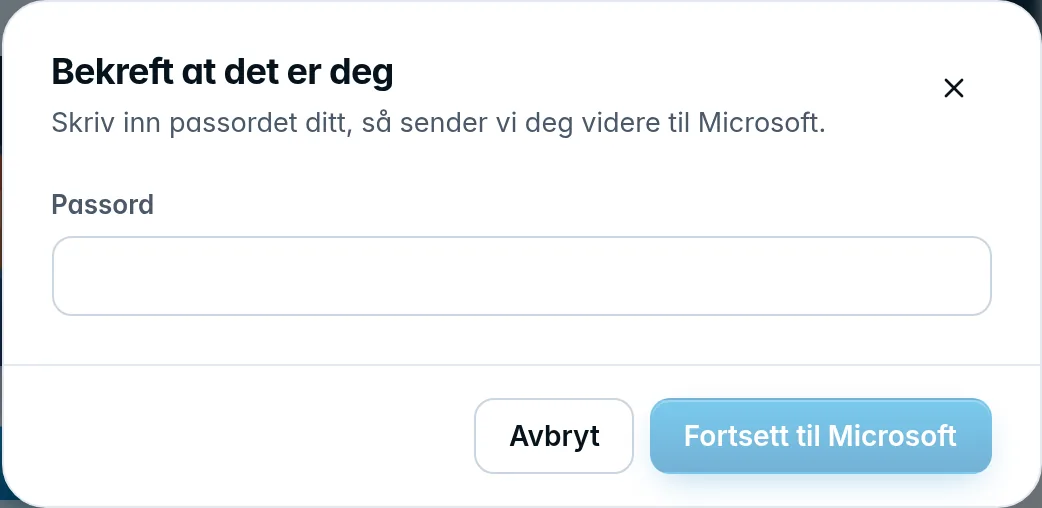
- Confirm it is you: enter your password under Password. If you have two-factor, also enter the one-time code from your authenticator app under One-time code. Recovery codes don't work here.
- Click Continue to Microsoft, and sign in with the work account that has the same email address as your user.
You come back to the Security tab with The Microsoft account is linked. You will get an email about the change. The card shows when the account was linked, and when you last signed in with it.
If it says You need a password to link. Set a password first., your user doesn't have a password yet. Create one under Password on the same tab, see Change password.
A wrong password or one-time code gives The password or one-time code is wrong. After five failed attempts in a row, the user is locked for ten minutes.
When linking doesn't work
When you come back from Microsoft, the card tells you what went wrong. The most common messages are:
- The Microsoft account has a different email address than your user here. Choose the account with the same address.
- Your company requires two-factor at Microsoft, and this sign-in did not have it. Turn on two-factor here or at Microsoft. See Turn on two-factor authentication.
- The Microsoft account is already linked to a user.
- It took too long at Microsoft. Try again.
Unlink your account
- Click Unlink.
- Confirm with Unlink in the Unlink Microsoft? dialog.
From then on you sign in with your password, and you get an email about the change. You aren't signed out.
You can't unlink when Microsoft is the only way in. The card then tells you why:
- You cannot unlink, because Microsoft is the only way in: your user has no password. Set a password first.
- You cannot unlink, because your company requires sign-in with Microsoft. Contact Digiserv if the link is wrong.
If Digiserv unlinks your account, you're signed out, and you get an email about it.