Switch company
Everything you see and order applies to the company shown at the top of the menu under Active company. If you're linked to several companies, you can switch between them.
- Click the company name at the top of the menu, or the company under You are working as on the overview.
- Under My companies you see your companies with their organization number and your role.
- Click the company you want to switch to. You get the message “You are now working as …”.
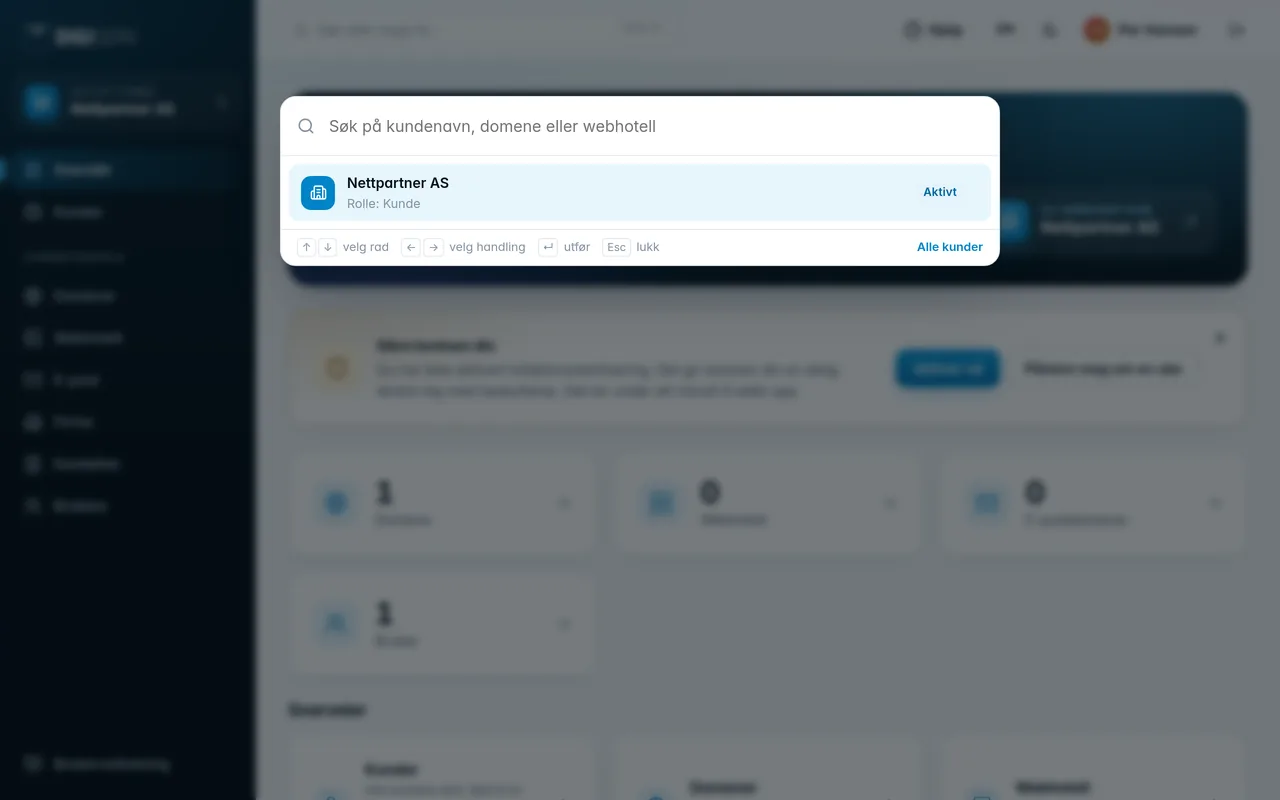
If you have several companies, the / key opens the company picker from anywhere in the panel (not while you're typing in a field). Use the arrow keys and Enter, and Esc to close.
If you're working for a company other than your own, Other company appears above the name, and below it you'll find Back to … to return to your own.
At the bottom of the company picker is Add a new company. It opens the registration form where you apply to become a customer with a new company.
Was this page helpful?