Accounts
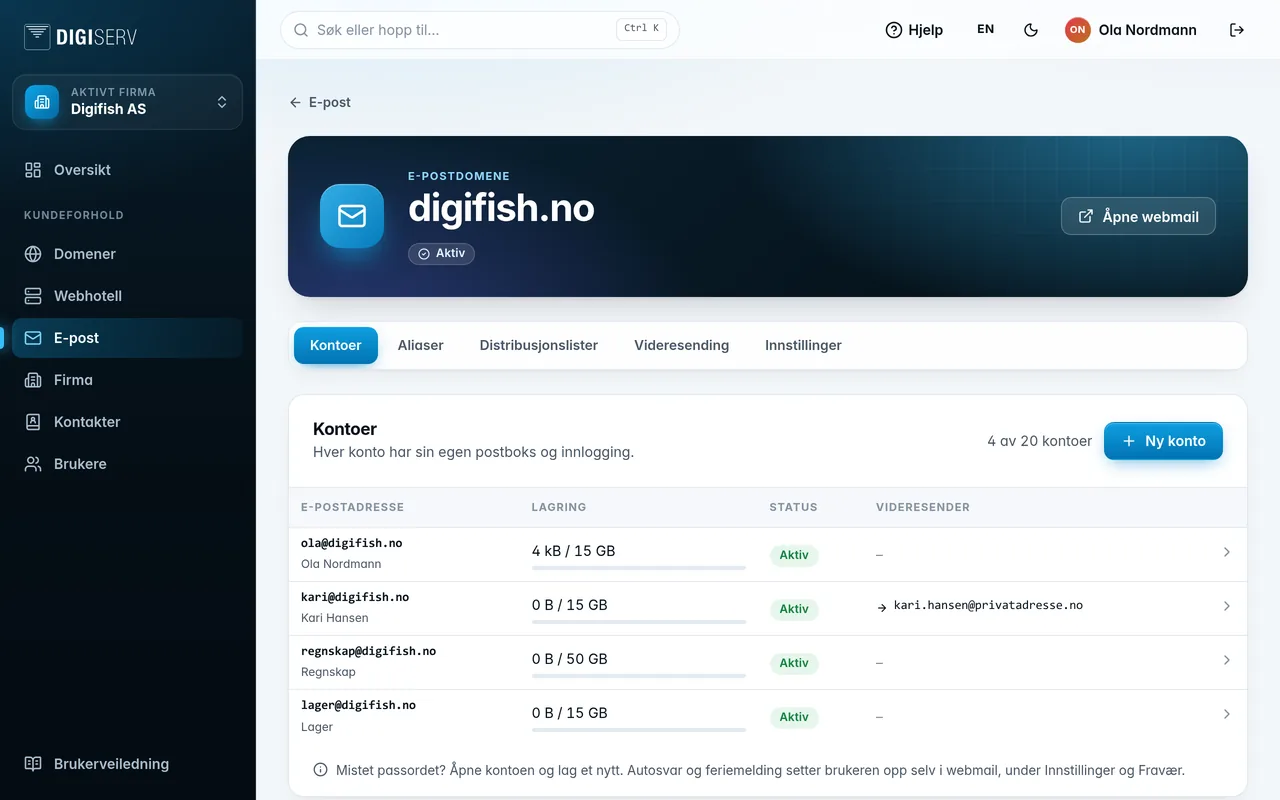
Click the domain in the list. The domain page has five tabs: Accounts, Aliases, Distribution lists, Forwarding and Settings.
The Accounts tab shows all the mailboxes on the domain, with storage used against the quota, status and whether the account forwards email. At the top right you can see how many accounts the domain has, and how many it has room for.
Create an account
- Click New account.
- Enter the Username, which is the part before the @. The domain is fixed after the field.
- Optionally enter a Display name. That's the name recipients see, for example “Ola Nordmann”.
- Click Create account.
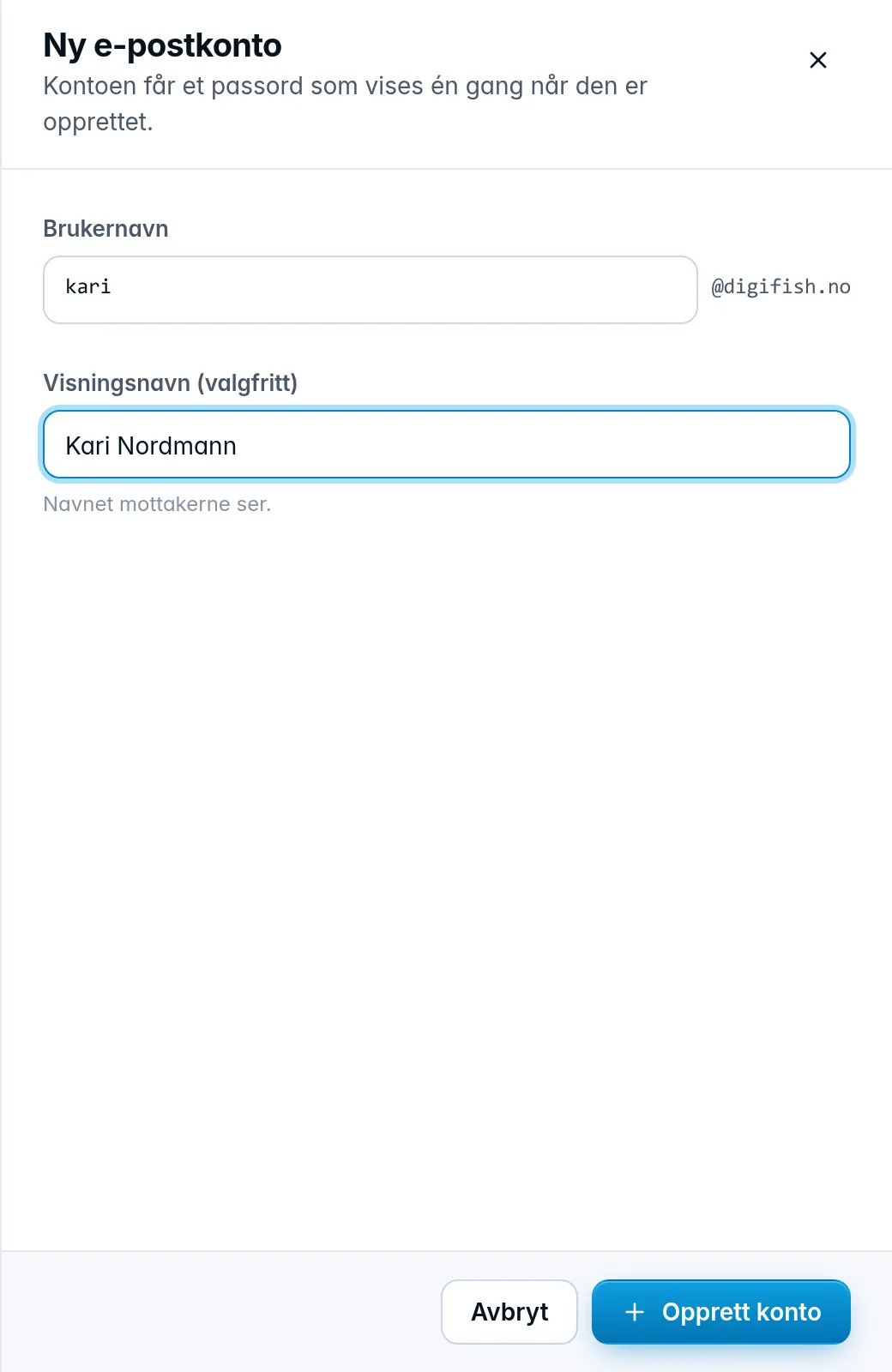
The username can contain the letters a to z, numbers, periods, hyphens and underscores, and can be at most 64 characters long. The new account gets the domain's default quota.
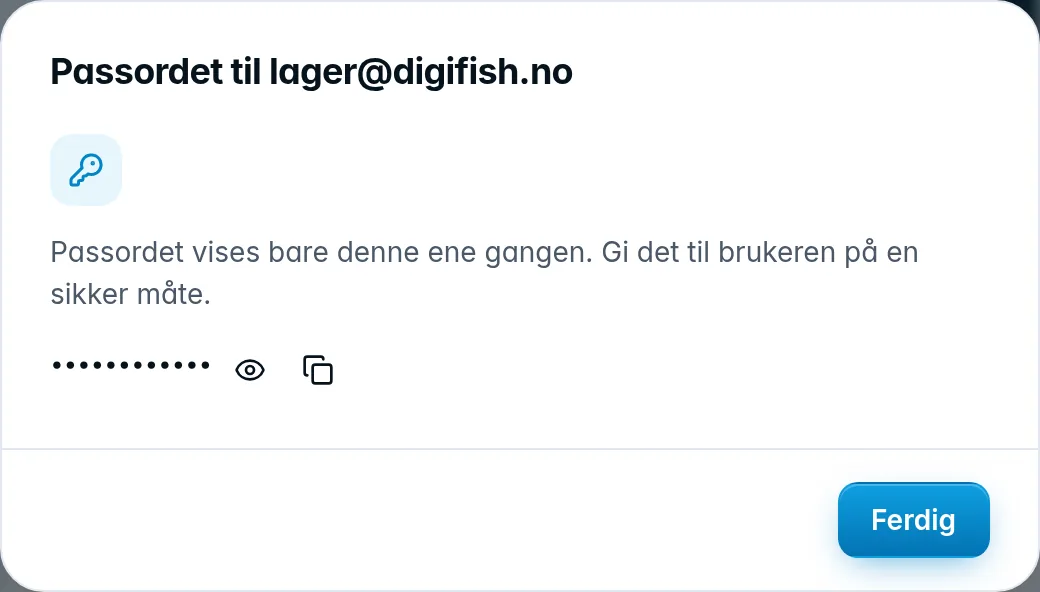
Once the account has been created, the password is shown in a separate window. Click the eye to see it, or copy it with the copy button. Close with Done.
While the change is being sent to the mail server, the account shows Syncing. It becomes Active once it's live, usually within seconds.
Create a new password
If a user has forgotten their password, or wants a specific password, you set a new one:
- Click the account in the list.
- Choose Generate one for me and click Create new password. The new password is shown once. Copy it and give it to the user.
- If the user wants to choose the password themselves, choose Choose my own, enter it twice and click Set the password. The password must have at least 12 characters with lowercase and uppercase letters, numbers and a symbol, and passwords known from data breaches are rejected.
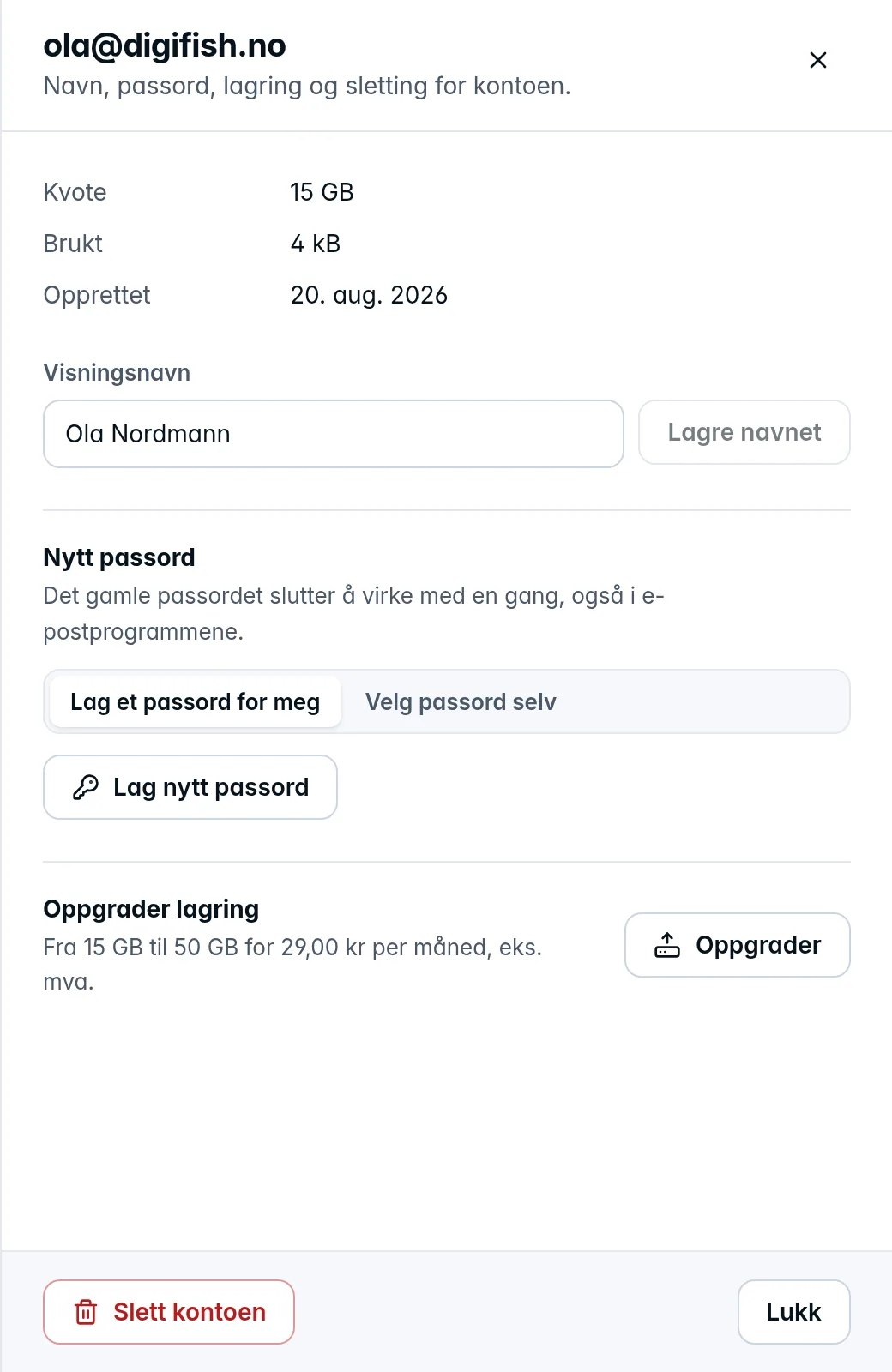
The old password stops working immediately, in email apps too. Remind the user to update the password on their PC, phone and tablet.
Change the display name
Open the account, enter the new name under Display name and click Save the name. The email address itself can't be changed. If someone needs a different address, create a new account, ideally with an alias from the old address.
Upgrade storage
An account on the domain's default quota can be upgraded to 50 GB. Open the account and click Upgrade under Upgrade storage. The monthly price is shown in the text and in the confirmation. The add-on is added to the subscription for the email service.
An account can only be upgraded once, and the button disappears afterwards. If you need a different quota, or want to go back down, contact us.
Delete an account
- Open the account and click Delete the account at the bottom of the drawer.
- Confirm with Delete the account.
The account stops receiving email immediately, and the aliases that delivered to it are deleted at the same time. All email in the account is permanently deleted after 30 days. If you deleted it by mistake, contact us before the deadline.