Forwarding
Forwarding sends a copy of all incoming email to an external address. The email also stays in the mailbox. This is useful, for example, when an employee is on leave.
- Go to the Forwarding tab and click the account.
- Turn on Forward email.
- Enter the address under Forward to, and click Save.
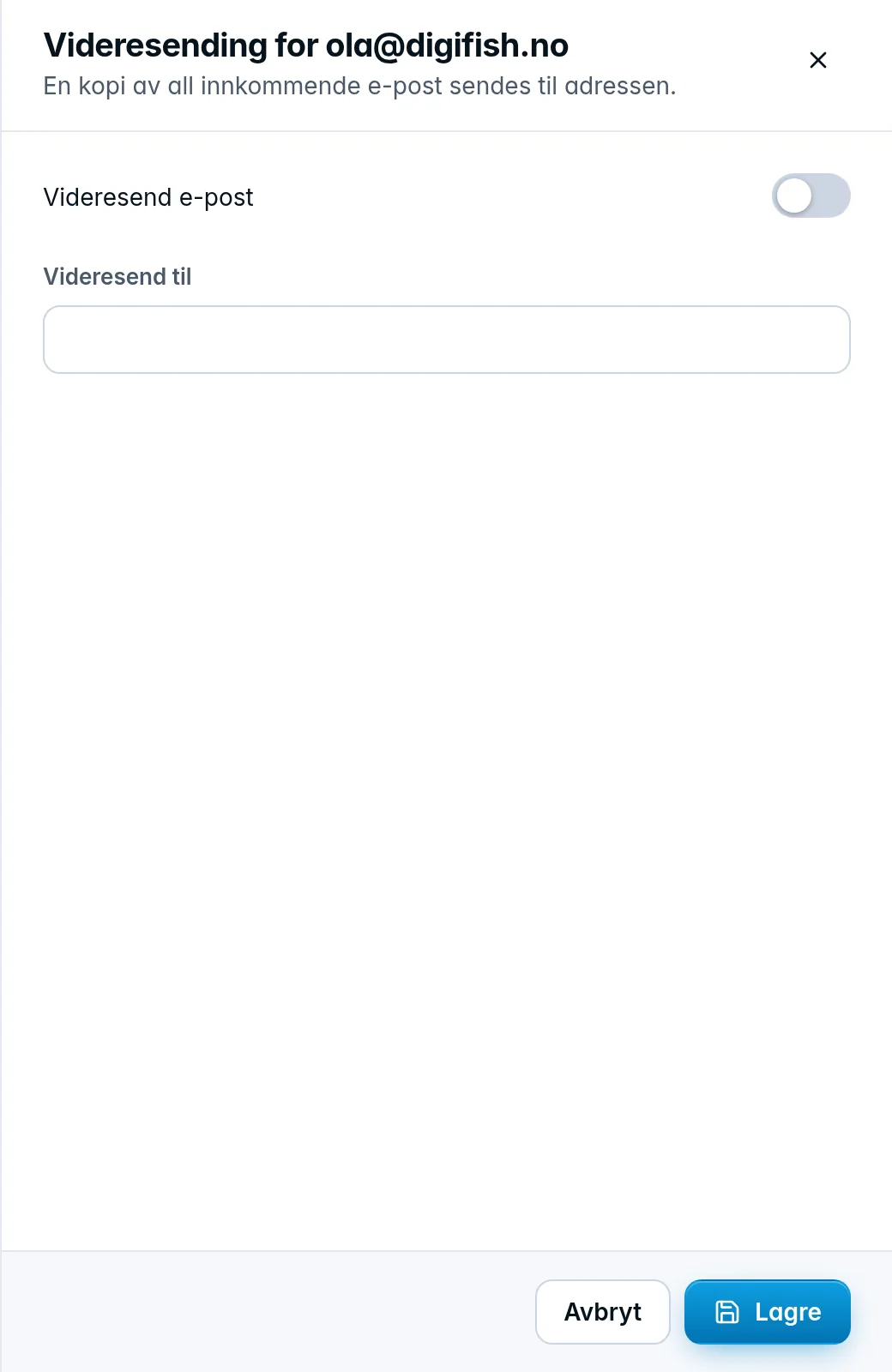
To stop forwarding, open the account again, turn off the switch and click Save. An account can forward to one address, and not to itself.
Alias, list or forwarding?
| Alias | Distribution list | Forwarding | |
|---|---|---|---|
| What | Extra address for one account | One address for several recipients | Copy of all email to one other address |
| Recipients | One account on the domain | Up to 50, internal and external | One |
| Can send from the address | Yes, with Send as on | No | Not applicable |
If one person should receive email at several addresses, use an alias. If several people should receive email at the same address, use a distribution list. If email should also reach an address outside the company, use forwarding.
Was this page helpful?