Onboarding and offboarding in the control panel
Under Employees in the control panel, you register new employees at your company, change what they have access to, and report those who are leaving. You answer what we need to know in a wizard, and we do the work and keep you updated along the way.
Onboarding and offboarding can be enabled on request. It is not turned on by default. If you would like it, contact us at support@digiserv.no or 38 27 80 00, and we will set it up for your company.
Who sees Employees?
Employees is set up by Digiserv for each company, and we are the ones who grant access. You can get the right to submit requests in one of two ways:
- You get an email invitation from Digiserv to submit requests about employees joining and leaving the company.
- You already have a user in the control panel, and we give it access.
Access can cover the whole company, or only certain companies in the group or certain cost centers. You then only see the employees and requests in the part of the company you have access to. If you want more people to be able to submit requests, or to change what someone sees, contact us. It cannot be changed in the control panel.
If Employees is the only thing you have access to, it is the only item in the menu, and the page you land on when you sign in. If you have other access in the control panel as well, Employees appears in the menu alongside it.
If the page says We will set this up for you, Employees has not been set up for your company yet. Contact us, and we will sort it out.
If The portal is turned off for you right now, so new requests cannot be reported here. appears at the top of the page, you only see your requests. You can reply to them, and we follow up requests already under way as usual. Contact us if you need anything.
The Employees page
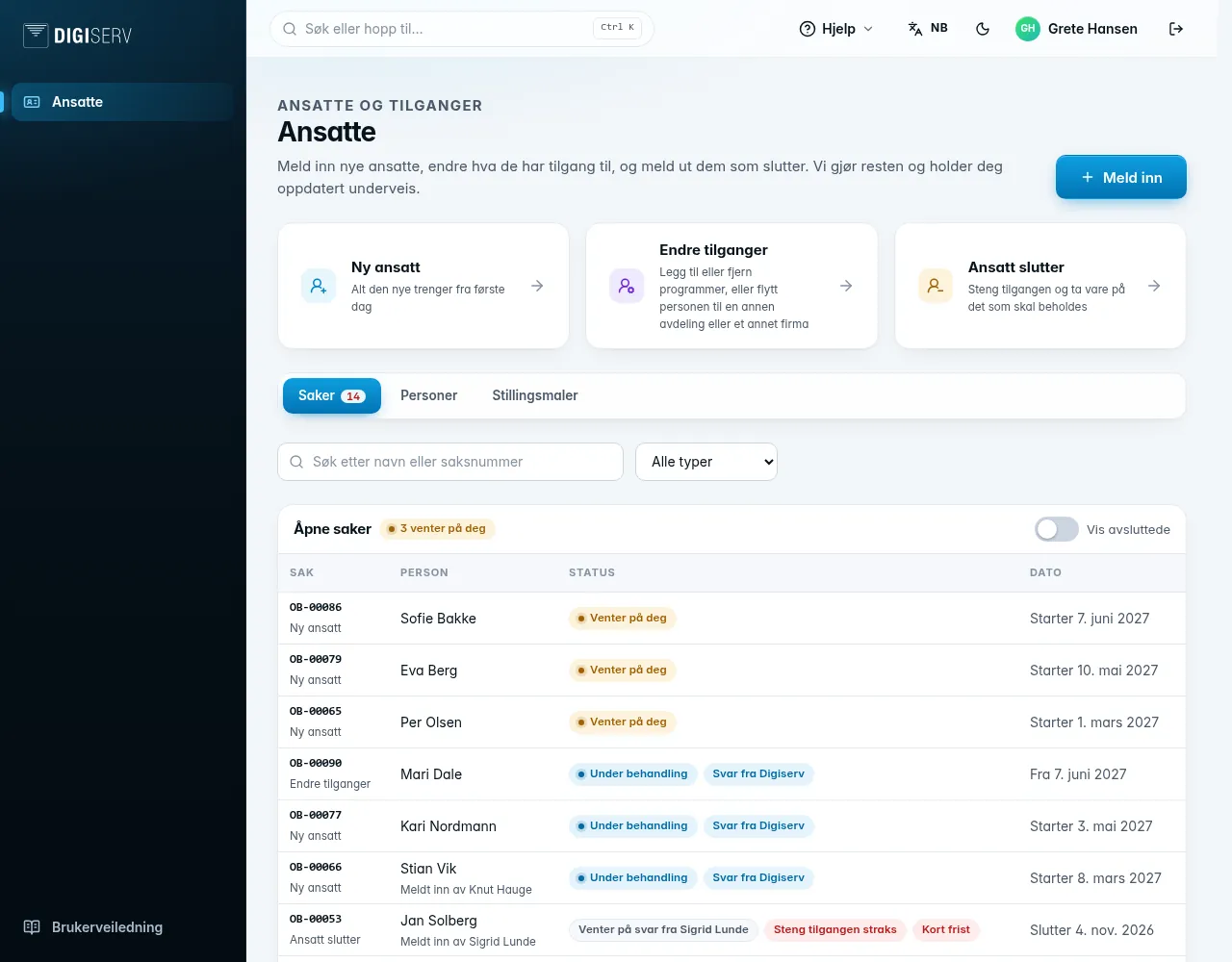
At the top is the New request button, which asks what you want to submit, and three shortcuts that start the wizard straight on the right type:
- New employee: everything the new person needs from day one. See Register a new employee.
- Change access: add or remove software, or move the person to a different department or company. See Change an employee's access.
- Employee leaving: close access and keep what needs to be kept. See Report an employee leaving.
Below the shortcuts are three tabs: Requests, People and Role templates.
Requests
Everything you submit becomes a request with its own request number, for example OB-00012. Open requests lists the requests that are not closed, with those waiting for you at the top. The number on the Requests tab is the number of open requests. It is red when something is waiting for you, and the number waiting is shown next to the heading, for example 1 waiting for you.
Waiting for you applies to requests you submitted yourself. If a colleague submitted the request, it says Waiting for a reply from [name], and the row shows who submitted it. If you know the answer, you can reply to it too.
Above the list, you can search by name, email or request number. If there are more than five open requests, you can also filter by type with All types. If your search matches a closed request, this is shown below the field, with Show. Turn on Show closed to see completed and cancelled requests. Click a request to open it.
The date in the list is when the person starts, when a change takes effect, or when the person leaves. Everyone with access to the same part of the company sees the same requests and can follow them up.
Requests you have started but not sent are listed under Not sent with Continue and Delete. The wizard saves as you go, so you can take a break and continue later. A draft that has not been changed in 30 days is deleted automatically. What your colleagues have started is listed under Started by colleagues. With View, you can read it without changing anything.
The statuses
| Status | Meaning |
|---|---|
| Not sent | The request has been started, but not sent to us. |
| Sent | We have received the request, but not picked it up yet. Until then, you can change or cancel it. |
| In progress | We are working on the request. The checklist in the request shows what has been done. You can change the date and the mobile number with Change next to the field: we enter the change and reply in the request. |
| Waiting for you | We have a question in the request. Answer in the request, and we will carry on. |
| Done | Everything is done. |
| Cancelled | The request has been cancelled, and we will do nothing more with it. |
A request can also have these flags:
- Reply from Digiserv: we have written in the request, and you have not opened it since.
- Short notice: the date is close. We do our best, but cannot promise everything will be ready.
- The date has passed: the date the request applies to has passed, and the request is not closed.
- Not picked up yet: the deadline is approaching, and we have not picked up the request yet.
- Close access straight away: access is to be closed as soon as we pick up the request.
- Cancellation requested: you have asked to cancel a request we have started on, and we have not replied yet.
- Change requested: you have reported a new date or a new mobile number on a request we have started on, and we have not entered it yet.
When the request is closed
A completed request shows Need anything else? The request is closed, so submit anything else you need as a new request. The Change access button starts the wizard for the same person, as long as the person has not left. A cancelled request can be submitted again, see Register a new employee.
People
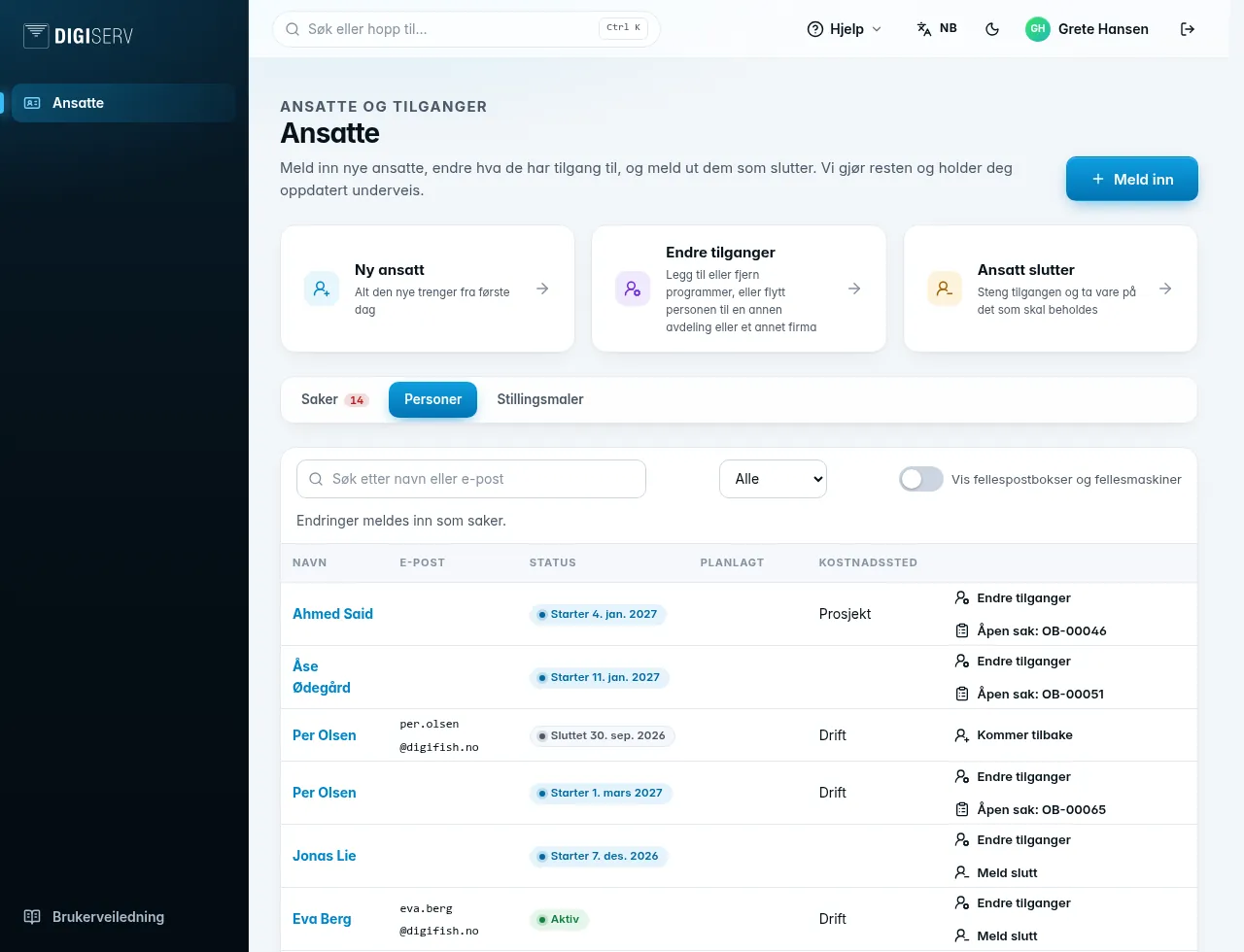
People lists the employees in the part of the company you have access to, with email, status and planned dates. Choose Starting, Leaving or Left in the filter to see who is joining and leaving, with the date in a separate column. Requests we have not picked up yet are included and marked Reported. If the status says Starts and a date, the person has not started yet. We maintain the list for you, and you do not change it here: changes are submitted as requests. If someone is not in the list, you can still register a new employee or report someone leaving. A new employee appears in the list once we have picked up the request.
Above the list, you can search, and show Everyone, Active, Starting, Leaving or Left. If your company has several companies in the group, you can also choose a company. Shared mailboxes and shared machines are hidden by default. Turn on Show shared mailboxes and shared machines to see them.
Click a person to see more. This shows open and closed requests, what the requests have ordered, and the licenses registered to the person. With Change access and Employee leaving, on the row or at the bottom of the drawer, you start the wizard with the person selected. For a shared mailbox, it is called Close, see Report an employee leaving.
Employee leaving is not shown when the person already has an open request about starting or leaving, or already has a planned end date. If the person has an open request, the row links to it instead. For someone who has left, it says Coming back, see Register a new employee.
Role templates
A role template ticks software, equipment and mailing lists for a role, so you do not have to do it every time. Click New role template, give the template a name, for example “Office staff” or “Sales”, and tick what the role usually needs. If your company has several companies in the group, you choose under Applies to whether the template applies to the whole company or one of them.
Click New employee next to the template, or choose it in the wizard. What you ticked is then preselected, and you can change everything in each request. If you change or delete a template, requests already created with it are not changed. A template that applies to a part of the company you do not have access to can only be viewed.
Show me around
The first time you open Employees, you get a short tour of the page: New request, the shortcuts, the request list and the tabs. The tour only starts automatically on the overview, never in the wizard or on a request, and you get at most one automatic tour per sign-in.
You find the rest under Help at the top right. There, Show me around here shows the most important parts of the page you are on, also in the wizard and on a request. See Help, tour and user guide.
Contact us
Under Help at the top right, you find Call us with the phone number, and Send an email with the address. On mobile, the same options are in the menu, under Contact Digiserv.