Change an employee's access
This applies to companies that have enabled onboarding and offboarding in the control panel. It can be enabled on request: see Onboarding and offboarding in the control panel.
Click Change access on the Employees page, or next to the person under People. The wizard has the steps Who, Changes, When and Summary. Details is added when something you add needs information from you, and Equipment when you add equipment.
1. Who
Search for the person by name or email. If the person already has an open request, the wizard tells you, with a link to the request. Check whether what you want to submit belongs there. You can also continue with a new request.
2. Changes
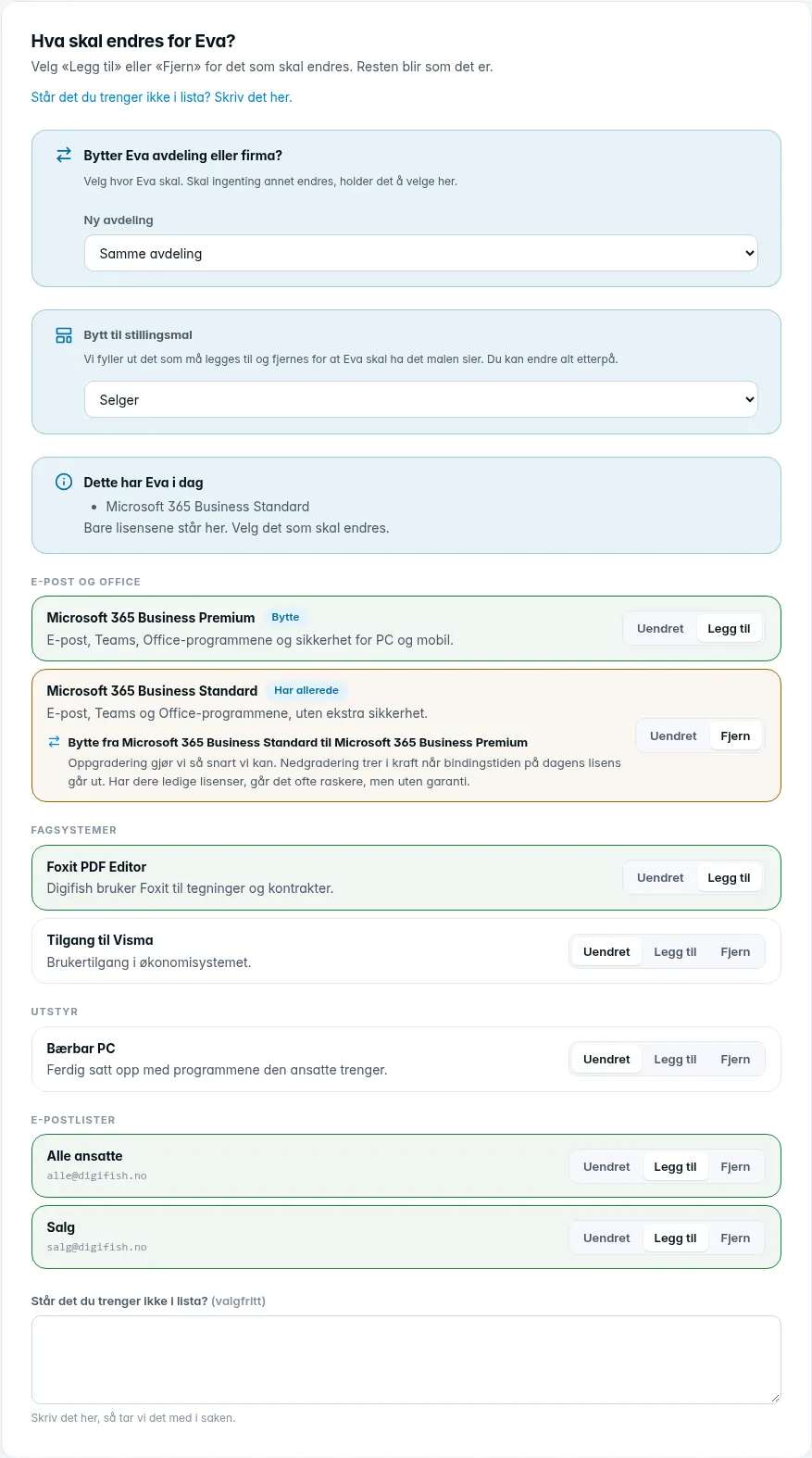
Choose Add or Remove next to what should change. Anything set to No change stays as it is. You can change licenses and access, equipment and mailing lists.
- What [name] has today shows the licenses registered to the person. Only the licenses are listed there. If nothing is listed, choose what should change, and we will check what the person has when we pick up the request.
- What the person already has is marked Already has. It can only be removed or left unchanged.
- Add on one license and Remove on another of the same kind is a swap, marked Swap. You then do not get the question about the data. We handle upgrades as soon as we can. Downgrades take effect when the commitment period on the current license ends.
- Switch to a role template fills in what needs to be added and removed for the person to have what the template specifies. You can change everything afterwards. Equipment in the template is not added.
- Is what you need not in the list? Write it in the field at the bottom, and we will include it in the request. That alone is enough to send the request.
Is the person changing department or company?
Use the Is [name] changing department or company? card at the top of the step. Choose under New company or New department. New company appears when there are other companies to move to. If nothing else is changing, choosing here is enough, and the summary says Everything else stays the same. Under People, the person appears in the new place once the request is done.
The card only appears when the company has departments (cost centers) or several companies to move between. The licenses and access follow the person, and the cost moves with them to the new department. Whoever can submit requests for the department the person is in now reports the move; the new department does not need to be one you have access to.
When something with data is removed
If you remove something that holds email or files, such as a Microsoft 365 license, the data may be deleted. The wizard warns you, and you choose what happens to it:
- Delete immediately: the email and the user's data are deleted when the change is made, and you stop paying for what is removed.
- Keep the email: we keep the email for a period. The user's data is deleted, and you stop paying for what is removed when the change is made.
- Keep everything: we keep the email and the user's data for a period. You stop paying for what is removed when the change is made.
- [name] keeps the data (changing licence): nothing is deleted, and the data carries over to the new license. Write what the license is being changed to in the Is what you need not in the list? field, just above the option.
If you keep anything, you also choose how long under For how long?, or A different number of days. The period counts from the date the change is made. When it is over, we delete the data. We do not notify you in advance, so make sure anything that should be kept has been exported before that date.
3. Details
If anything you add needs information from you, the wizard asks for it here.
4. Equipment
This step appears when you add equipment, and asks How should [name] get the equipment? Choose New, Taken over from a colleague, Digiserv has one in stock or You already have one.
If the equipment is taken over from a colleague, you choose who. The questions that follow, and the buttons on the confirmation, are the same as for a new employee, see Register a new employee.
5. When
Choose the date the change should be in place under From date. As for a new employee, we work out when everything must be ready, the last working day before the date, and you get a Short notice warning when time is short. If the person has not started yet, the wizard suggests the start date with a separate button.
6. Summary
Review and click Send to Digiserv. The rest works as for a new employee: you get a confirmation, we pick up the request and tick off the checklist, and you hear from us when everything is ready. See the section “What happens at Digiserv” in Register a new employee.