Report an employee leaving
This applies to companies that have enabled onboarding and offboarding in the control panel. It can be enabled on request: see Onboarding and offboarding in the control panel.
Click Employee leaving on the Employees page, or next to the person under People. The wizard has the steps Who, Last day, Email and data, Colleague, Auto-reply, Equipment and Summary. Report the departure as early as you can. That gives us the most time to get everything done by the end date.
1. Who
Search for the person who is leaving. If you cannot find the person, click Cannot find the person? Enter their name and email. We will then find the right person when we pick up the request.
2. Last day
Choose the end date. Access is closed after the end date. If it should be closed right away, turn on Close access straight away: we then close the account as soon as we pick up the request, regardless of the end date. An end date that has passed is fine too. We then close access as soon as we pick up the request.
If the person was due to start with you but is not starting after all, tick … is not starting after all. We then close what has been set up and cancel the license, and we do not ask about email, colleague and auto-reply: there is nothing to keep.
If the end date is close, or access is to be closed right away, the request gets the Short notice flag. We do our best to get everything done, and you can still send the request. If it is urgent, call us: the phone number is in the summary and on the confirmation.
3. Email and data
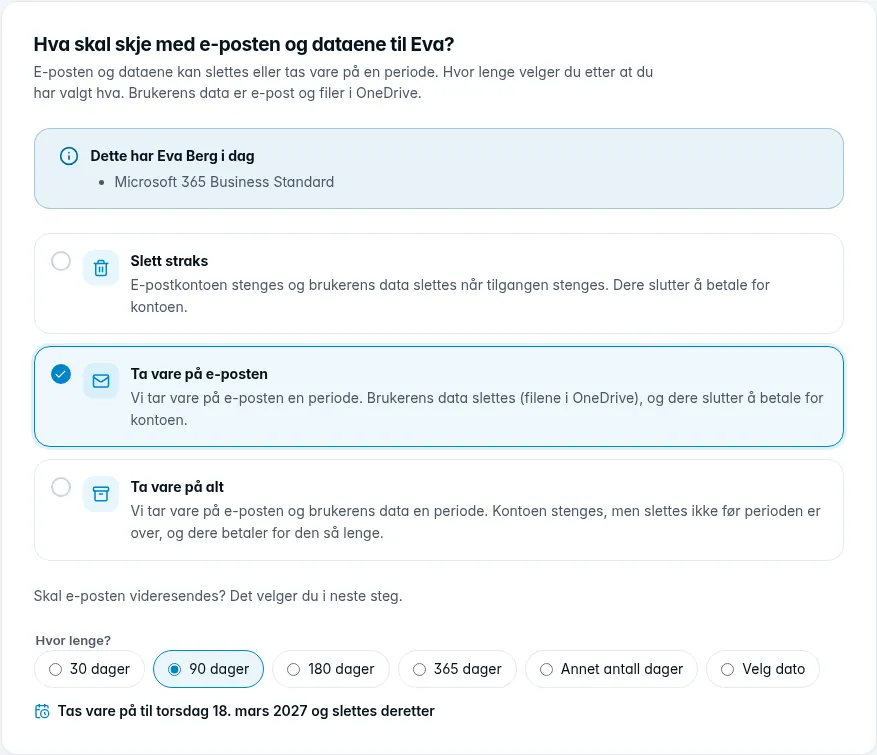
Choose what should happen to the email and data of the person leaving. The user's data is email and files in OneDrive.
- Delete immediately: the email account is closed and the user's data is deleted when access is closed. You stop paying for the account.
- Keep the email: we keep the email for a period. The user's data is deleted (the files in OneDrive), and you stop paying for the account.
- Keep everything: we keep the email and the user's data for a period. The account is closed, but not deleted until the period is over, and you pay for it until then.
If you keep anything, choose how long under For how long?, with A different number of days or Choose a date if none of the options fits. Below the options is the date the data will be kept until: the end date plus the period.
4. Colleague
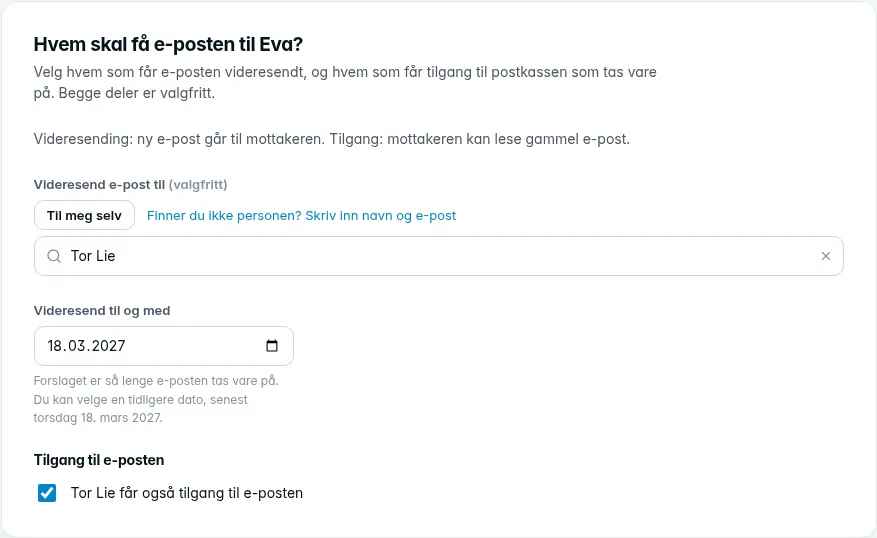
Here you choose who gets the email forwarded, and who gets access to what is kept. Both are optional. Forwarding means new email goes to the recipient. Access means the recipient can read old email, and the files when you keep everything.
If you only keep the email, the step asks Who should get [name]'s email?, and the option is called Access to the email. If you keep everything, it is called Access to the data.
- Forward email to: search for the colleague. The colleague can be any of the company's employees, including outside the part you have access to. If you want it yourself, click To me. If the recipient is not in the list, click Cannot find the person? Enter their name and email.
- Forward until: the date is suggested based on how long the data is kept, and you can choose an earlier date. Forwarding cannot last longer than the retention period, or longer than the end date when nothing is kept.
- Access to the data (or Access to the email): tick to give the same colleague access as well, or choose someone else. If you choose no one, no one gets access. If you choose Delete immediately, there is nothing to give access to.
5. Auto-reply
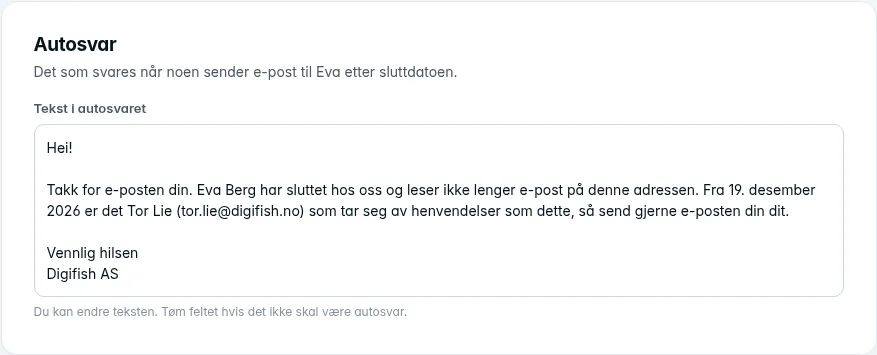
The auto-reply is the response people get when they email the person after the end date. The wizard fills in the default text with the name, the date and the colleague who gets the email. You can rewrite the text as you like, and Use the default text brings it back. Clear the field if there should be no auto-reply.
The date in the text is the day after the end date, or today's date when you have chosen Close access straight away. If you have not chosen a colleague, the sentence about the colleague is left out. If you change the end date or the colleague afterwards, the text updates to match, as long as you have not rewritten it yourself.
If the auto-reply should run until a specific date, choose it under Auto-reply up to and including. The End of button with the name of the month fills in the last day of the month in which the auto-reply starts. Without a date, the auto-reply stays on as long as the mailbox exists. We remove it on the date you chose.
If you have chosen Delete immediately, there is no auto-reply unless you choose Auto-reply until a date. We then convert the mailbox to a shared mailbox that no one has access to, so the license is freed up, and we delete it after the date. If the auto-reply lasts longer than you keep the email, the mailbox stays until the auto-reply is over.
6. Equipment
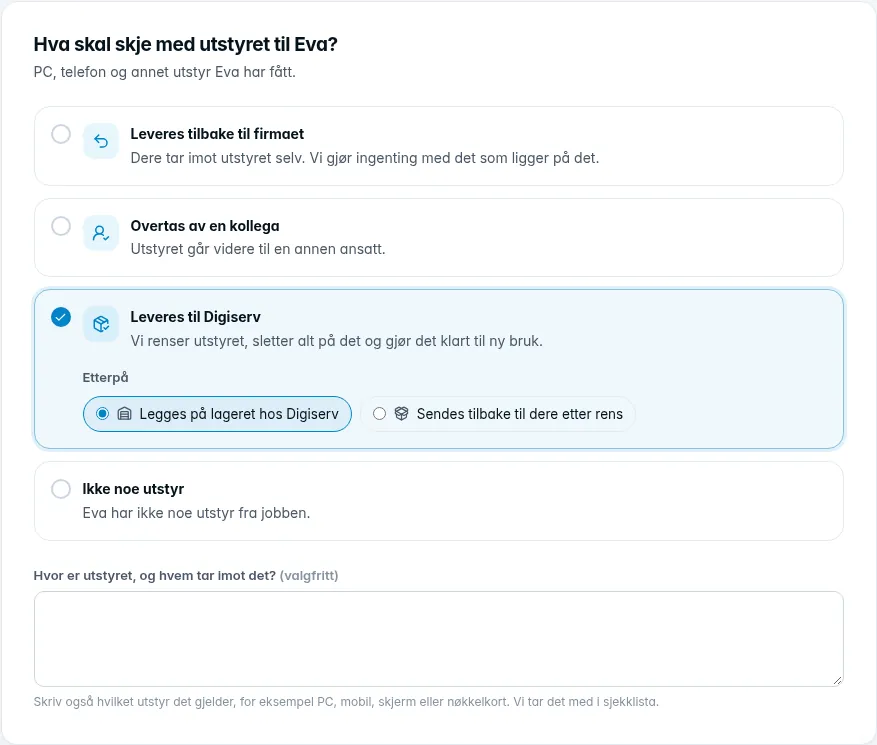
Choose what should happen to the PC, phone and other equipment the person has been given:
- Returned to the company: you receive the equipment yourselves. We do nothing with what is on it.
- Taken over by a colleague: choose who takes over the equipment.
- Delivered to Digiserv: we wipe the equipment, delete everything on it and get it ready for reuse. Choose under Afterwards whether it should be Kept in stock at Digiserv or Returned to you after wiping.
- No equipment: the person has no equipment from work.
In the Where is the equipment, and who receives it? field, also write which equipment it concerns, for example PC, mobile, monitor or key card. We add it to the checklist.
7. Summary
Review and click Send to Digiserv. If licenses are registered to the person, they are listed at the top under What [name] has today. If a placeholder such as {dato} is left in the auto-reply, the error is shown at Auto-reply, and the request cannot be sent until you have corrected the text. Anything else we should know?, the text message option and the confirmation work as for a new employee, see Register a new employee.
After the request is sent
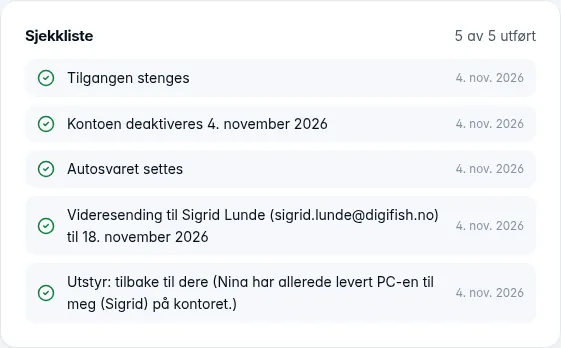
When we pick up the request, it gets a checklist you can follow in the request. Items are ticked off as we complete them:
- access is closed, when you chose Close access straight away
- the last working day, and that access is closed the day after
- the auto-reply is set up, with the date you chose
- the mailbox is converted to a shared mailbox, when you chose Delete immediately with an auto-reply until a date
- email is forwarded to the recipient until the date you chose
- the colleague gets access to the email and files
- what is to happen to the equipment
- each license registered to the person
We map out the licenses and access the person has, and close them. If you keep everything, the checklist shows how long the license is kept.
When everything is done, the request changes to Done, and you get an email. Questions, messages and cancellation work as for a new employee, see the section “What happens at Digiserv” in Register a new employee.
What you do yourself when someone leaves, such as collecting keys and access cards and changing passwords on shared accounts, is covered in Employee leaving: checklist for managers.
When the retention period is over
If you kept email or files, we do the final job when the retention period is over: we delete what has been kept. If you kept everything, we also cancel the license. This happens after the request shows Done. The date is in the request under Email and data. We do not notify you before it happens.
Closing a shared mailbox
Turn on Show shared mailboxes and shared machines under People, and click Close next to the mailbox. The wizard is the same, but the date is called Last day, and there is no equipment step. The default auto-reply text is This address has been closed. Please send enquiries to the colleague you choose. The request is called Closing a shared mailbox in the list. A technical account is closed the same way.