Sign-in with Microsoft for your company
With sign-in with Microsoft, your employees sign in to the control panel with their Microsoft 365 work account. Digiserv sets it up for each company, and you can't turn it on yourselves. It's included at no extra cost. If you want it, contact us at support@digiserv.no or 38 27 80 00.
This page is for whoever manages Microsoft 365 at your company. How employees sign in is described in Sign in with Microsoft.
How we set it up
- Domain: we find your organization at Microsoft based on the domain, and add the email domains the sign-in should apply to.
- Approval: an administrator approves the app from Digiserv once for the whole organization. If we have partner access (GDAP) to your Microsoft 365, we do it ourselves. Otherwise we send you a link.
- Test: we send a test link to someone at your company. It shows whether the sign-in would succeed.
- On: we turn on the sign-in for the company. Passwords work as before.
If you have several companies with us, it's set up for each company.
Approve the app
- Open the link from us, and sign in at Microsoft with an administrator account that can approve apps for the whole organization.
- Check that Microsoft shows Digiserv AS as the publisher, with the blue badge showing that the publisher is verified.
- Accept the permissions the app requests.
- You come to the Consent to sign-in with Microsoft page with Thank you. Consent has been given at Microsoft, and you can close this page.
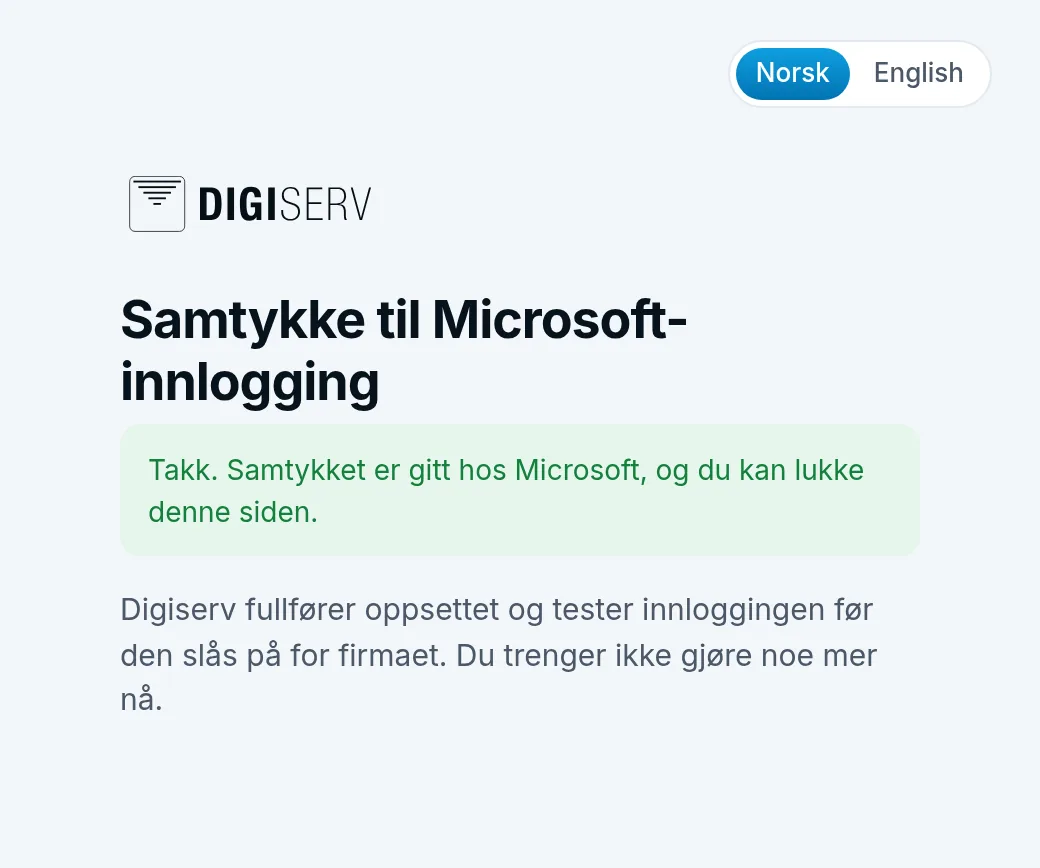
That's all you need to do. We complete the setup and test the sign-in before it's turned on for the company.
If it says Microsoft did not record any consent. It must be given by an administrator in the company. Close this page and try again, or contact Digiserv., the app wasn't approved. Send us the code under Code from Microsoft:, and we'll figure it out.
The test link
The test link runs a real sign-in at Microsoft, but doesn't sign anyone in or link anything. Whoever opens it should have a user in your company's control panel. Otherwise the test shows that the sign-in would have been rejected. Afterwards you come to Test of sign-in with Microsoft. It shows The sign-in would have succeeded. or The sign-in would have been rejected., and what the test found: the company, the email address from Microsoft, whether two-factor authentication was used, and which user the sign-in would have matched. We see the result too.
The link is valid for three days. If it says The link is invalid, expired or already used. Ask Digiserv for a new one., we'll send you a new one.
What the app can read
The app only asks to sign in the user and read the basic profile: name and email address. It has no access to email, files, calendar, Teams or other users in the organization. Nor can it do anything when the user isn't signing in themselves.
With each sign-in, the control panel learns:
- which organization and which Microsoft account the sign-in comes from
- the name and email address
- whether Microsoft has verified the domain in the email address
- whether the sign-in used two-factor authentication
- whether the account is a member or a guest in the organization
The control panel recognizes the user by their Microsoft account, not by the email address alone.
Why Digiserv AS is shown as the publisher
The app is a single shared app that Digiserv has registered and operates for all customers. That's why Digiserv AS is shown as the publisher. At Microsoft it's called “Digiserv Control Panel”, and after approval it appears under Enterprise applications in your Microsoft Entra. The blue badge means Microsoft has verified that the app comes from Digiserv AS. You don't need to register an app yourselves, create certificates or renew anything.
Who gets in
- Only people who have a user in the control panel. Microsoft doesn't create users with us, so new colleagues still need to be invited, see Invite a colleague.
- Only users who belong to the company, with an email address on the domains in the setup.
- Not guests in your organization, and not personal Microsoft accounts.
- The first time, the user confirms with their control panel password, and with the one-time code if they have two-factor authentication. Someone who has been invited can instead accept the invitation with Microsoft. Each time an account is linked, the user gets an email.
- No one at Digiserv can sign in through your organization.
If you want users to skip the confirmation the first time, we can turn on automatic linking. It doesn't apply to users who have two-factor authentication in the control panel.
Two-factor authentication
By default, the control panel accepts a sign-in from Microsoft without two-factor authentication. If the user has two-factor authentication in the control panel, it then asks for the one-time code. You decide whether two-factor should be required, and we set it up. Then the sign-in at Microsoft must use two-factor, or the user must have two-factor authentication in the control panel.
Require sign-in with Microsoft
We can also require sign-in with Microsoft for the company. Then the password stops working for users with an email address on the domains in the setup, and they have to use Microsoft.
- Users with an email address on other domains, for example an external accountant, keep their password.
- We can make exceptions for individual users.
- Before we turn it on, we check what the requirement does to each user. One of your users with the Customer role must also have passed the test within the last seven days.
- When the requirement is turned on, the users it affects are logged out. Apps they've given access to their account need to be connected again.
- Passwords are never deleted. We can turn password login back on, and if Microsoft is down, we can let passwords work for everyone until it's resolved.
When someone leaves
Without the requirement, the control panel password works even if the account is blocked at Microsoft. A sign-in with Microsoft also lasts up to eight hours, and Microsoft can't end it. So when someone leaves, block the account at Microsoft and remove the user in the control panel, see Remove a user. You can also let us know.