Create a new customer
Click New customer in the customer list, or go to New customer. The wizard has five steps: Customer, Addresses, Billing, Contacts and Summary. The customer becomes your customer, with your company as the reseller.
Customer
- Choose Business or Private person.
- Choose Country. You can choose Norway, Sweden, Denmark, Finland or Iceland.
- For a business: enter the organization number or company name under Find company, and click Search. Choose the right company in the list, and the name and address are filled in from the register.
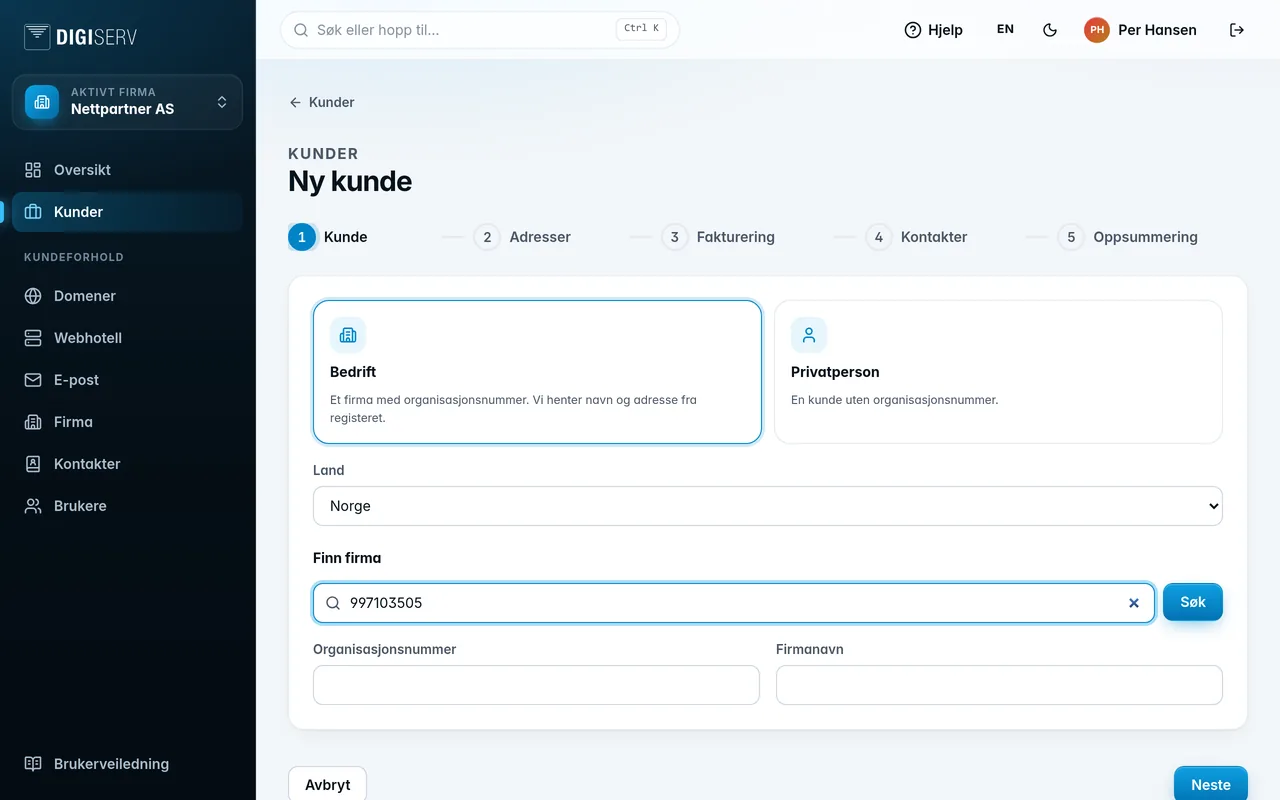
Name search is only available for Norwegian companies. For the other countries, enter the organization number. If the company is marked Already a customer, it is already registered with Digiserv. If you cannot find the company, or the register does not respond, click Fill in yourself.
Addresses
Invoice address is required. Visiting, postal and delivery addresses are optional. Tick the ones you want to fill in. The panel checks the postal code, and if the city does not match, you can click Use with the suggested city.
Billing
Choose EHF or Email. The method is preselected based on whether the company can receive EHF e-invoices. Invoice recipient (optional) is the address the invoices are sent to. An empty field means the invoice contact's email address. You can also fill in Main number (optional).
Contacts
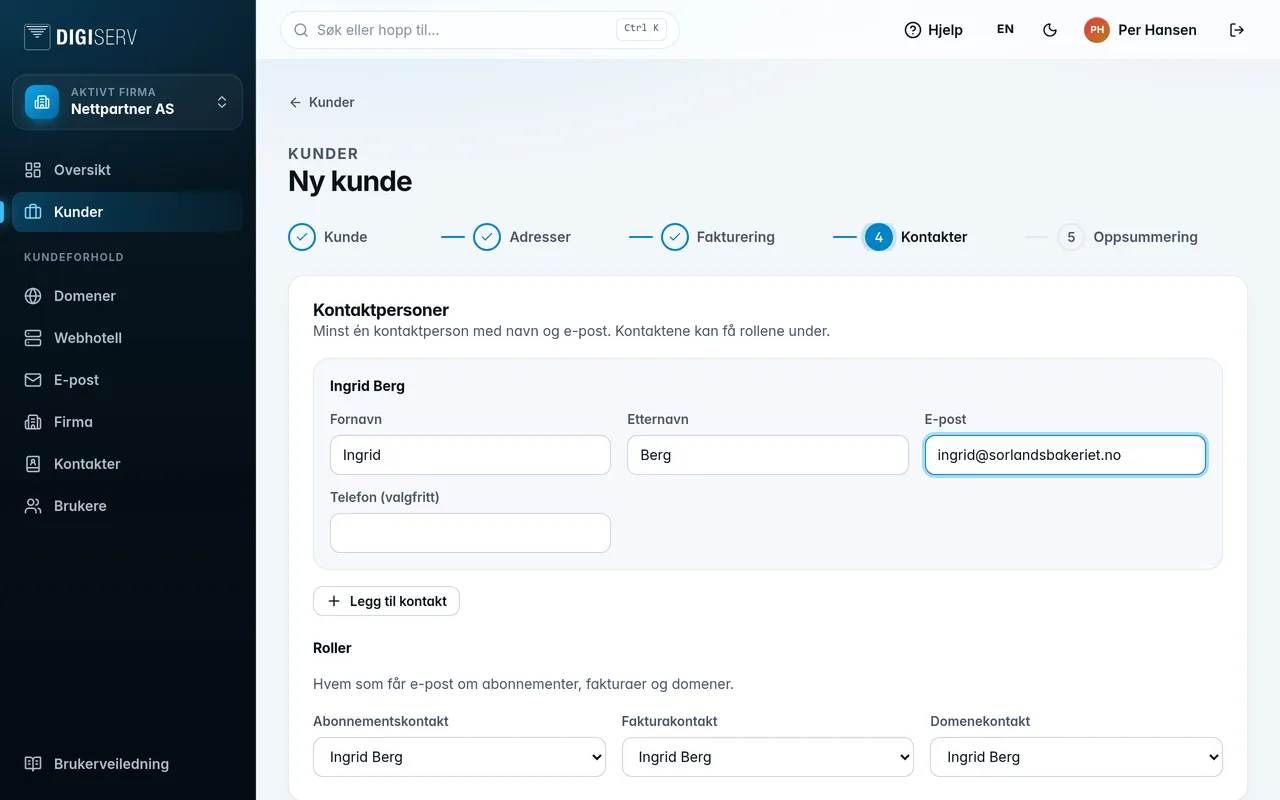
Add at least one contact person with first name, last name and email. Click Add contact for more. Under Roles, choose who is the subscription, invoice and domain contact. All three roles must have a contact person.
Summary
Check the details and click Create customer. Once the customer has been created, you can go To the customer list or Switch to the customer straight away.
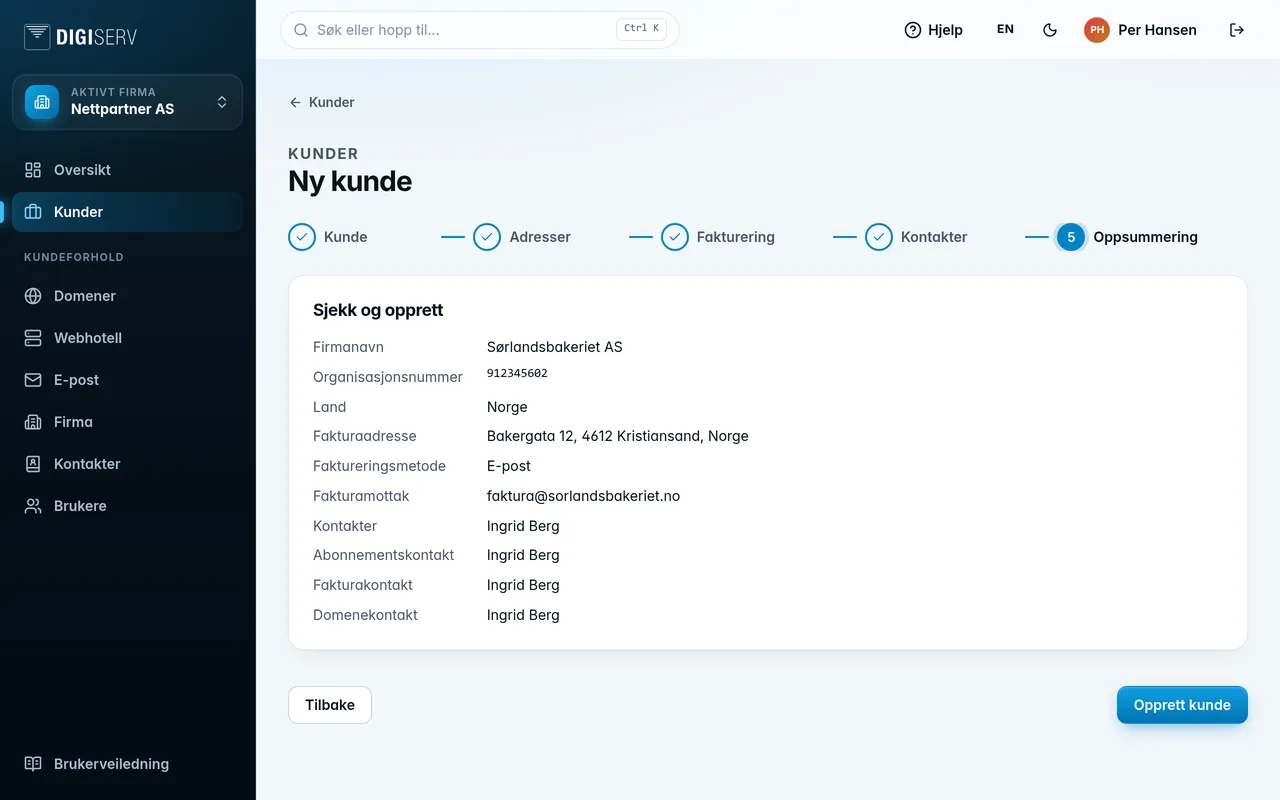
If a company with the same name or organization number already exists, the customer is not created, and the panel tells you so.