How to get email on your own domain

Don't have a domain yet? Check if the name is available first, and your email can be up and running the same day.
Most people know this already: an email from name@gmail.com or company@online.no doesn't carry the same weight as post@yourcompany.no. There's nothing wrong with Gmail or Hotmail as such – but when a customer receives a quote, an invoice or a contract from a free address, they read it as "not quite an established company," consciously or not. Email on your own domain turns that impression around completely.
The good news is that it's easier to set up than most people think. With us, it's just a few clicks from "we should sort this out" to a finished setup – and this is how you do it.
Why your own domain makes a difference
- Credibility. The recipient can see right away which business the email comes from. The address is an extension of the name on your door and the logo on your van.
- Control. You own the address. If you switch email providers later, or grow with more employees, the addresses come with you – your users will barely notice.
- Consistency. All employees get the same suffix, and you can create shared addresses like post@, invoice@ and support@ – which signals an organized business.
- No ads. The inbox is yours, not a platform that makes money from what you write about.
How it's done – three short steps
1. Make sure you have a domain with us
First, you need a domain name. If you don't already have one, you can register a new domain – it takes five minutes. If your domain is with another provider, you can transfer it to us.
You can also leave the domain where it is, as long as you manage DNS at the external registrar – but that means keeping track of several logins and making changes in two places. Our clear recommendation is to keep your domain, email and any web hosting in one place. It's safer when something needs to change, and easier when something goes wrong.
2. Order email in the control panel
Log in to the control panel and go to Email in the menu on the left. At the top right, you'll find the "Order email for new domain" button.
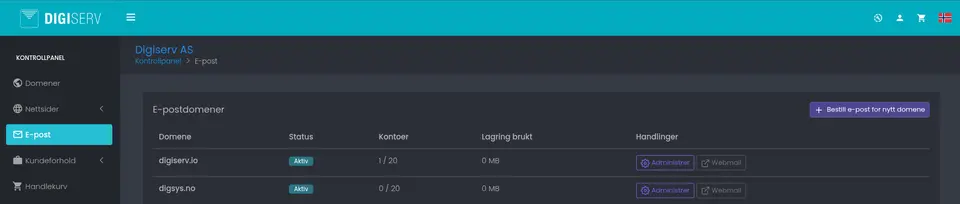
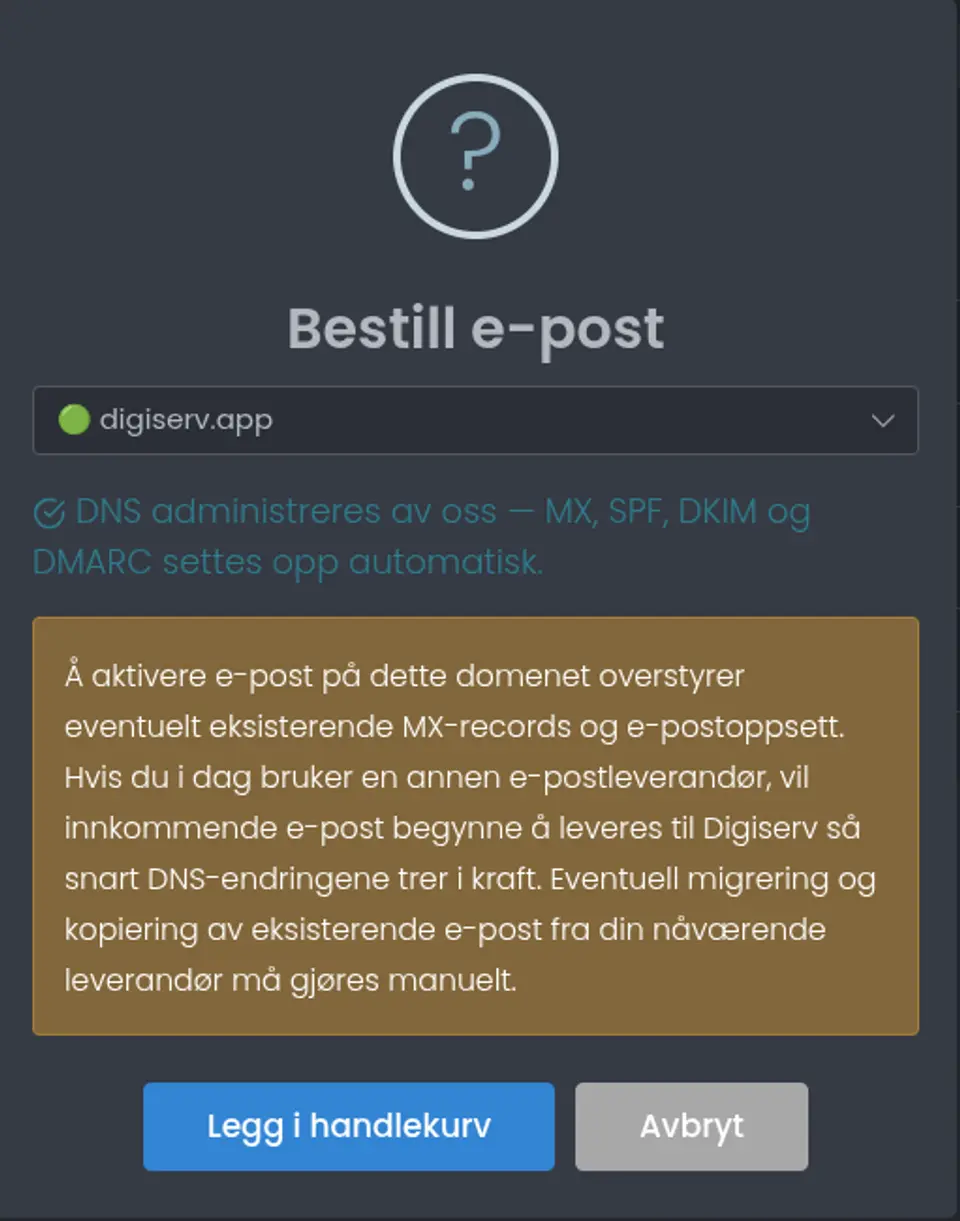
Choose which of your domains you want to activate email on. We take care of the MX, SPF, DKIM and DMARC setup automatically – the DNS settings that make sure your email is actually delivered and doesn't end up in the recipient's spam folder.
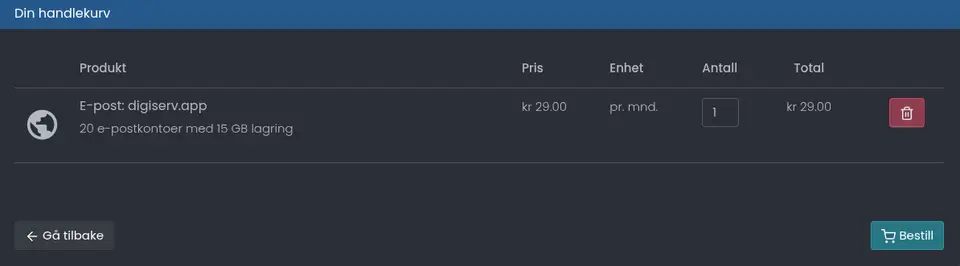
The order goes into your cart. Check that everything is correct and click "Order."
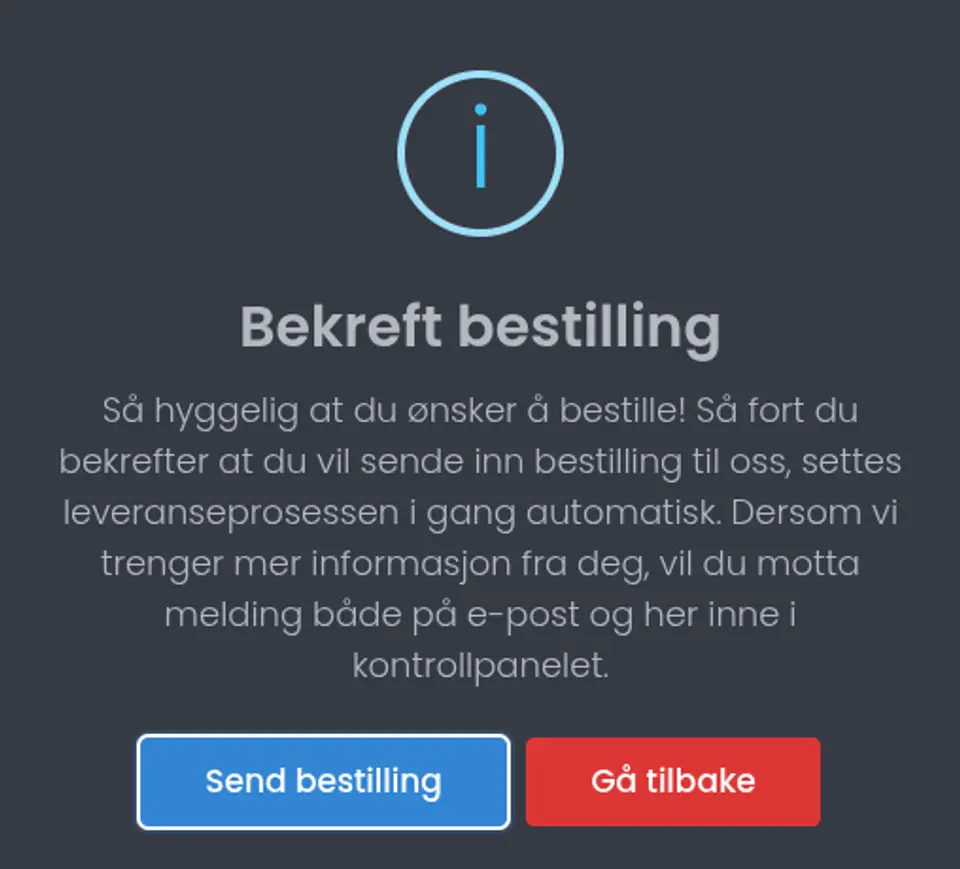
Confirm, and delivery starts automatically. If we need more information along the way, we'll send you a message both by email and in the control panel.
Shortly afterwards, the new email domain shows as "Active" in the overview. You're then ready to create accounts.

3. Create email accounts
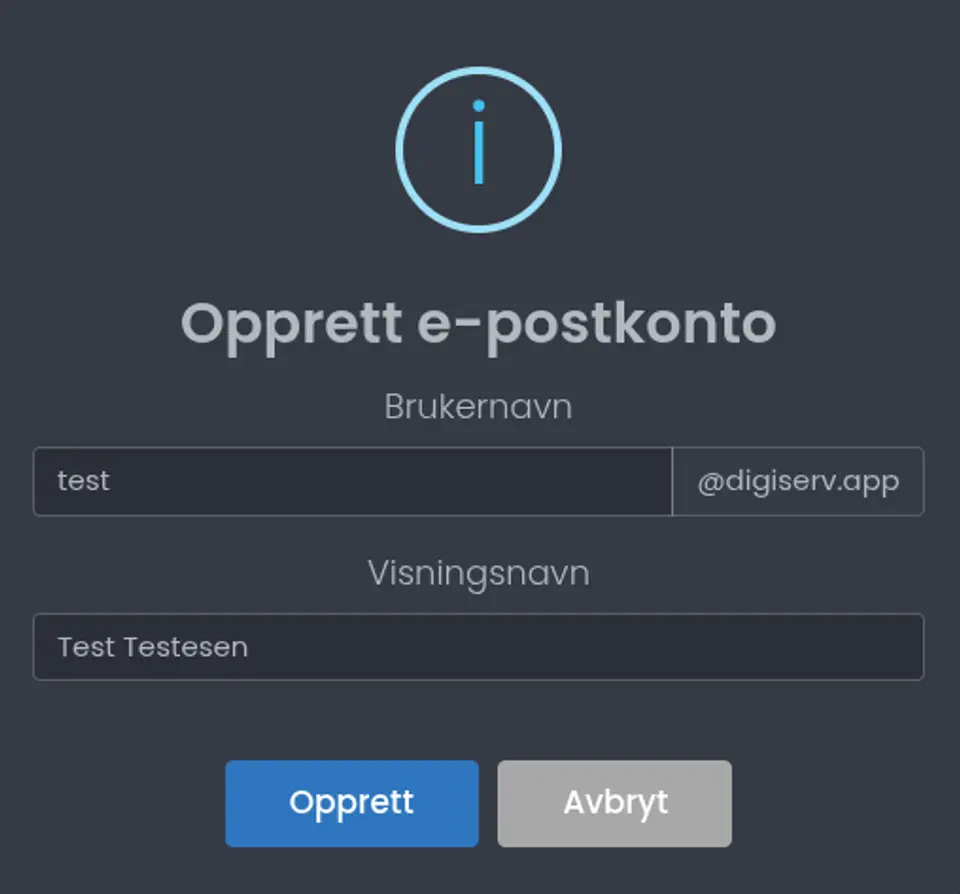
Click "Manage" on the domain to open the admin tool. Here you'll find accounts, aliases, distribution lists, forwarding and settings. Click "Create account" to set up the first address.

Choose a username (the part before the @) and a display name (what recipients see in their inbox).
A strong password is generated automatically. It's only shown this one time – copy it and pass it on to the user securely. If someone loses their password later, you can generate a new one directly from the control panel, without calling support.
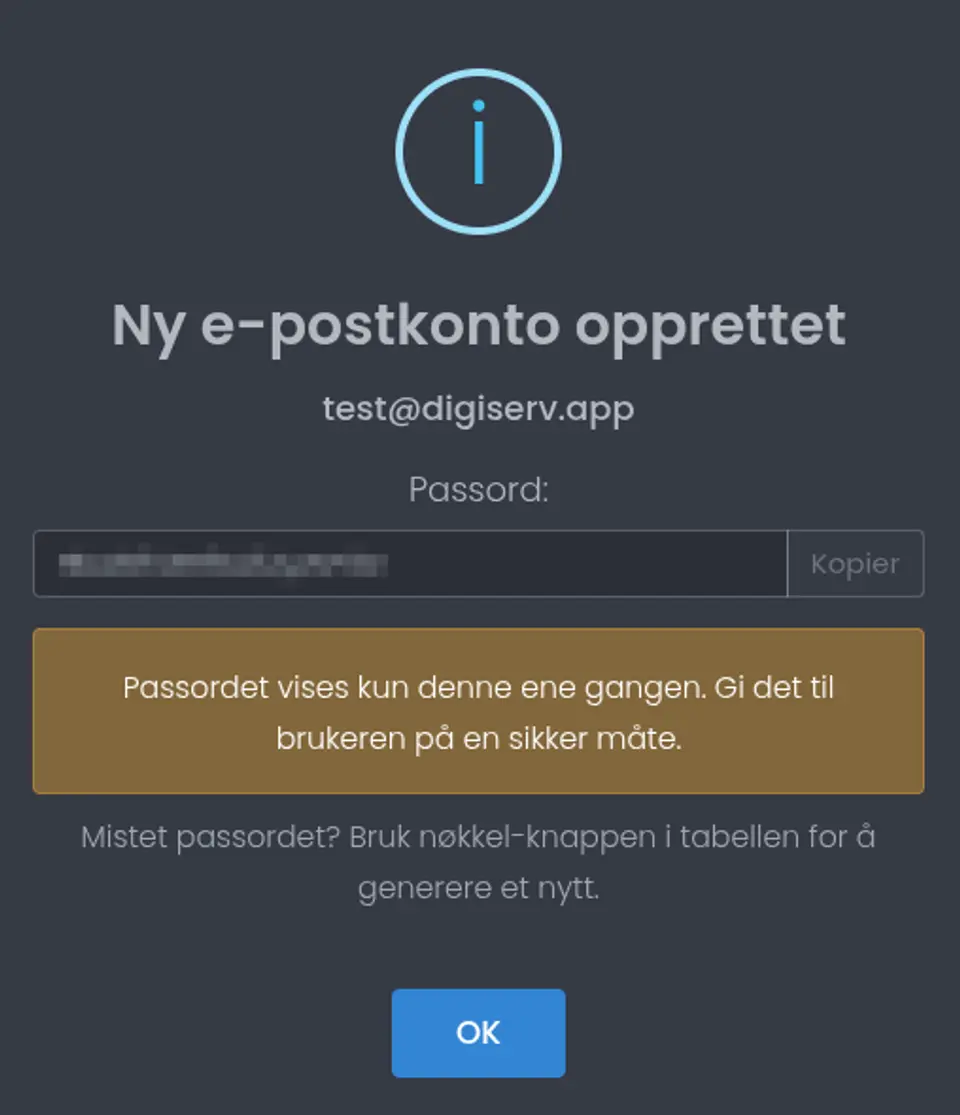
That's it. The account is ready to use.
Log in and get started
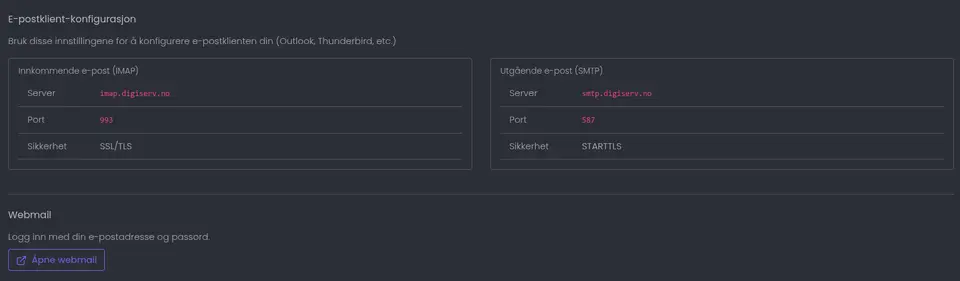
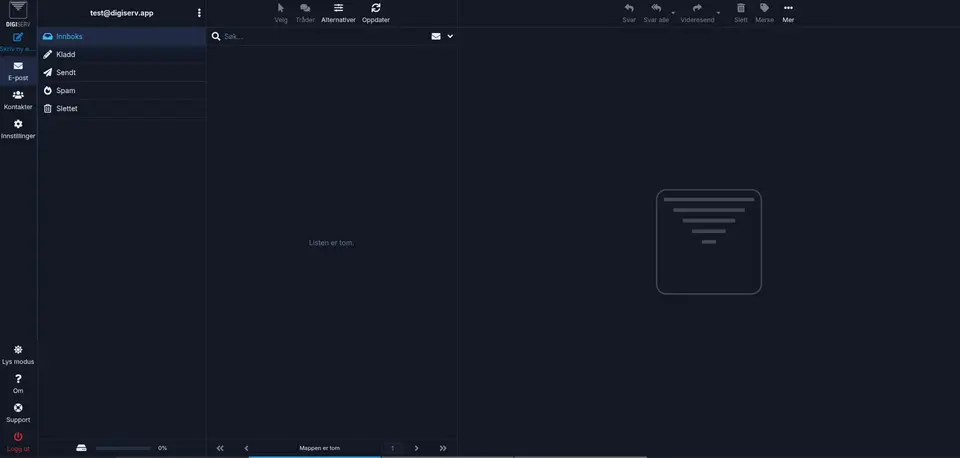
The Settings tab shows the server configuration for IMAP and SMTP – what you need to set up email in Outlook, Apple Mail, Thunderbird or on your phone. In the same place, you'll find a direct link to webmail.
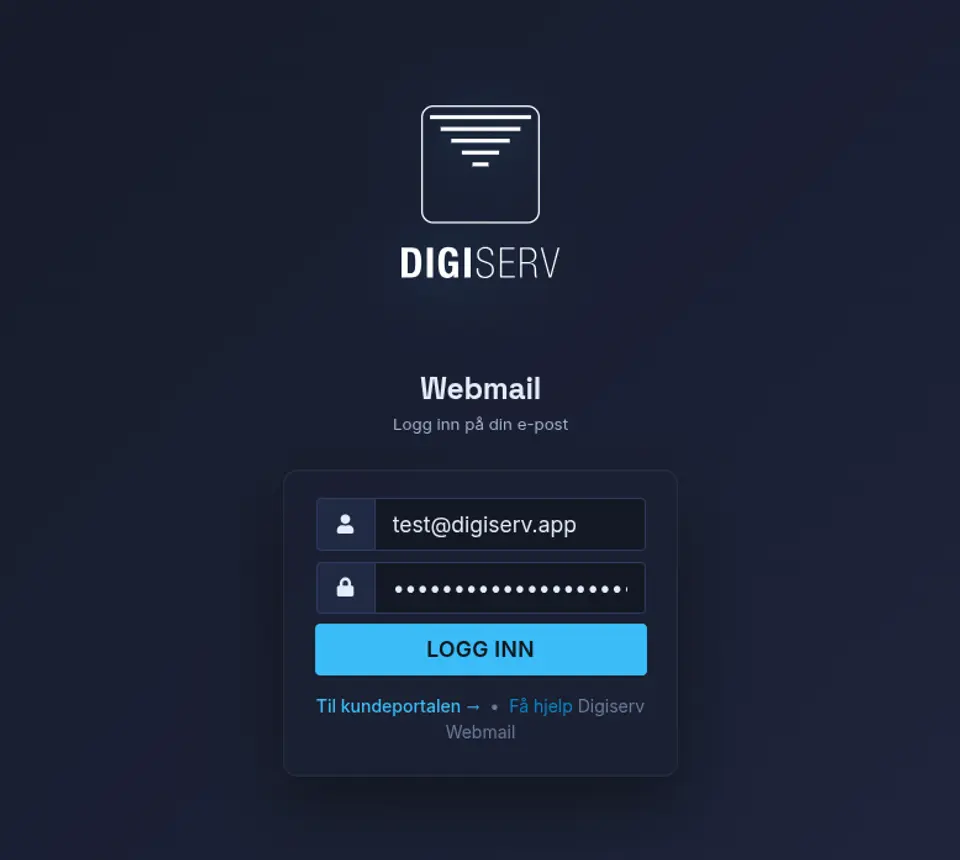
Webmail is handy on your phone, when traveling or on a borrowed PC – you log in from any browser with your email address and password, and you're in your inbox seconds later.
When basic email is no longer enough
Our email service is built for what people actually use email for – sending and receiving messages, keeping the inbox organized, sharing information. For many small and medium-sized businesses, that's all they need, and it works great.
But when more employees start needing shared calendars, shared contact lists, collaboration on documents and everything else Microsoft 365 offers, we recommend migrating. You switch email solutions but keep the same address and the same domain – your users will barely notice the transition. We handle the entire migration to Microsoft 365 for you, so it happens without anyone losing a single message.
Ready to set up your own email?
We're happy to help. Order email or register a domain directly – or send us a message if you'd like us to take care of setting it all up. From our offices in Mandal in Sørlandet (southern Norway), we help businesses all over Norway with email and domains every day.